> ## Documentation Index
> Fetch the complete documentation index at: https://docs.safaridesk.io/llms.txt
> Use this file to discover all available pages before exploring further.
# AI Help Centre (Chatbot) in SafariDesk
> Configure and deploy the SafariDesk AI Help Centre — an intelligent chatbot that answers customer questions using your Knowledge Base, auto-categorizes tickets, routes to the right department, and escalates seamlessly when human support is needed.
## AI Help Centre Overview
The **AI Help Centre** in SafariDesk is an intelligent chatbot that provides instant, around-the-clock support to your customers — powered directly by your existing **Knowledge Base**.
Rather than replacing your support team, it acts as a smart first line of defence by resolving common questions instantly, surfacing relevant help articles, and guiding users through self-service — before a ticket is ever created.
When the AI cannot fully resolve an issue, it transitions the conversation smoothly into a **support ticket**, ensuring no customer request falls through the cracks.
> 💡 A well-configured AI Help Centre reduces ticket volume, shortens resolution times, and delivers a faster, more consistent experience for every customer — at any hour of the day.
***
## Accessing AI Help Centre Settings
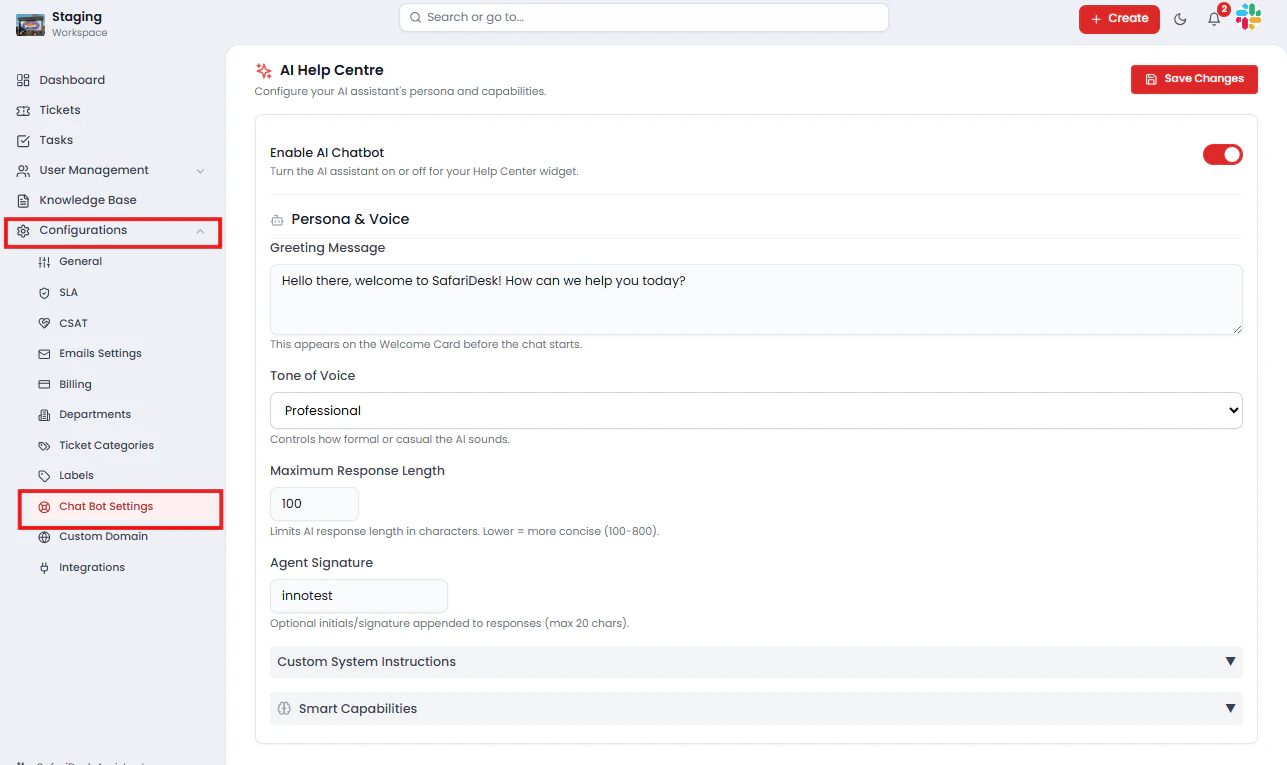
Navigate to:
**Configuration → AI Help Centre**
From this page, you can enable the chatbot, configure its persona and voice, set smart automation rules, and customize the customer-facing experience.
 ## How the AI Chatbot Works
The AI Help Centre follows a structured, self-service-first support flow:
1. A customer visits your **Help Center or Support Portal**
2. They open the chat widget and submit their question
3. The AI searches your **Knowledge Base** for relevant answers and articles
4. If a match is found → the customer receives an **instant response**
5. If no match is found → the AI assists the customer in **creating a support ticket**, with category, department, and priority pre-filled where possible
This flow ensures customers always get a response — whether through self-service or seamless escalation to your team.
## Enabling or Disabling the AI Chatbot
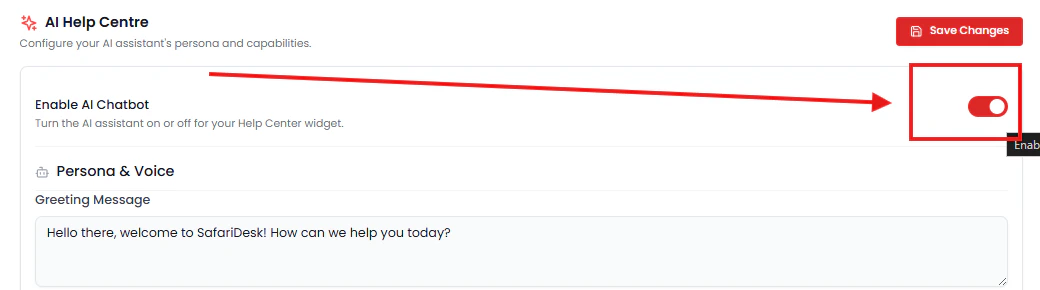
To activate or deactivate the AI assistant:
1. Navigate to **Configuration → AI Help Centre**
2. Toggle **Enable AI Chatbot** to **ON** or **OFF**
* **Enabled** — The chatbot widget appears on your Help Center and Support Portal
* **Disabled** — The chatbot is fully hidden; customers interact only with human agents
## How the AI Chatbot Works
The AI Help Centre follows a structured, self-service-first support flow:
1. A customer visits your **Help Center or Support Portal**
2. They open the chat widget and submit their question
3. The AI searches your **Knowledge Base** for relevant answers and articles
4. If a match is found → the customer receives an **instant response**
5. If no match is found → the AI assists the customer in **creating a support ticket**, with category, department, and priority pre-filled where possible
This flow ensures customers always get a response — whether through self-service or seamless escalation to your team.
## Enabling or Disabling the AI Chatbot
To activate or deactivate the AI assistant:
1. Navigate to **Configuration → AI Help Centre**
2. Toggle **Enable AI Chatbot** to **ON** or **OFF**
* **Enabled** — The chatbot widget appears on your Help Center and Support Portal
* **Disabled** — The chatbot is fully hidden; customers interact only with human agents
 > ⚠️ If your team prefers a fully human-driven support model, you can disable the AI chatbot at any time without affecting your ticket workflows or Knowledge Base.
***
## Persona & Voice Configuration
Customize how your AI assistant presents itself and communicates with customers to ensure it feels like a natural extension of your brand.
> ⚠️ If your team prefers a fully human-driven support model, you can disable the AI chatbot at any time without affecting your ticket workflows or Knowledge Base.
***
## Persona & Voice Configuration
Customize how your AI assistant presents itself and communicates with customers to ensure it feels like a natural extension of your brand.
 ### Greeting Message
The first message a customer sees when opening the chat widget.
Craft a greeting that is welcoming, on-brand, and sets clear expectations.
*Example: "Hello! Welcome to \[Your Company] Support. How can I help you today?"*
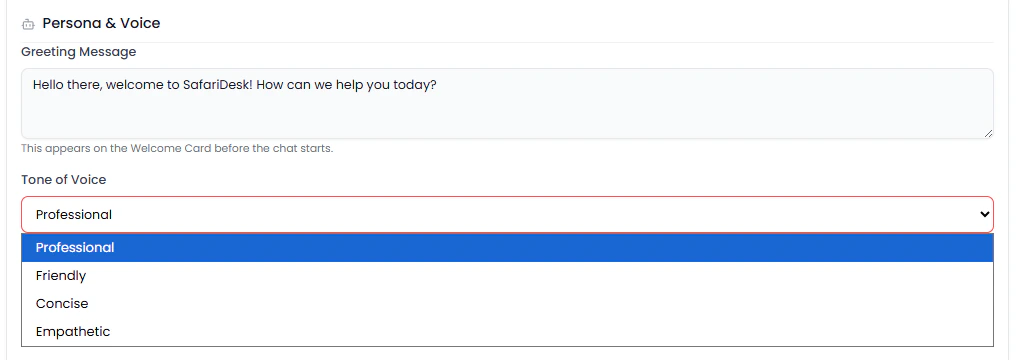
### Tone of Voice
Control the communication style of all AI responses:
* **Professional** — Formal, precise, and business-appropriate 💡 Match your AI tone to your brand voice. For example, a professional services company may prefer formal language, while a consumer product might benefit from a warmer, more conversational style. In addition to **Professional**, other available tones include **Friendly**, **Empathetic**, and **Concise**, giving you more flexibility to align the AI with your brand’s personality.
### Maximum Response Length
Define how detailed AI responses should be:
* **Range:** 100 – 800 characters
* **Shorter values** — Concise, to-the-point answers best suited for simple queries
* **Higher values** — More detailed explanations suited for technical or complex topics
Start with a mid-range value and adjust based on customer feedback and ticket escalation rates.
### Agent Signature
An optional closing signature appended to every AI response.
* *Example: "– Support Team" or "– SafariDesk Help"*
* Maximum: **20 characters**
This adds a personal touch and reinforces that customers are interacting with your brand.
### Custom System Instructions
Provide the AI with specific rules, priorities, or context that shape how it responds across all conversations.
Examples of effective system instructions:
* *"Always prioritize billing-related answers in responses"*
* *"Do not recommend or reference competitor tools"*
* *"Maintain a calm and reassuring tone when users express frustration"*
* *"Escalate immediately if the user mentions data loss or security concerns"*
> 💡 Custom instructions give you precise control over AI behaviour without requiring technical configuration. Use them to enforce brand guidelines, compliance requirements, or support priorities.
***
## Smart Capabilities
SafariDesk's AI Help Centre includes a suite of intelligent automation features that reduce manual effort and improve ticket quality from the moment a conversation begins.
### Greeting Message
The first message a customer sees when opening the chat widget.
Craft a greeting that is welcoming, on-brand, and sets clear expectations.
*Example: "Hello! Welcome to \[Your Company] Support. How can I help you today?"*
### Tone of Voice
Control the communication style of all AI responses:
* **Professional** — Formal, precise, and business-appropriate 💡 Match your AI tone to your brand voice. For example, a professional services company may prefer formal language, while a consumer product might benefit from a warmer, more conversational style. In addition to **Professional**, other available tones include **Friendly**, **Empathetic**, and **Concise**, giving you more flexibility to align the AI with your brand’s personality.
### Maximum Response Length
Define how detailed AI responses should be:
* **Range:** 100 – 800 characters
* **Shorter values** — Concise, to-the-point answers best suited for simple queries
* **Higher values** — More detailed explanations suited for technical or complex topics
Start with a mid-range value and adjust based on customer feedback and ticket escalation rates.
### Agent Signature
An optional closing signature appended to every AI response.
* *Example: "– Support Team" or "– SafariDesk Help"*
* Maximum: **20 characters**
This adds a personal touch and reinforces that customers are interacting with your brand.
### Custom System Instructions
Provide the AI with specific rules, priorities, or context that shape how it responds across all conversations.
Examples of effective system instructions:
* *"Always prioritize billing-related answers in responses"*
* *"Do not recommend or reference competitor tools"*
* *"Maintain a calm and reassuring tone when users express frustration"*
* *"Escalate immediately if the user mentions data loss or security concerns"*
> 💡 Custom instructions give you precise control over AI behaviour without requiring technical configuration. Use them to enforce brand guidelines, compliance requirements, or support priorities.
***
## Smart Capabilities
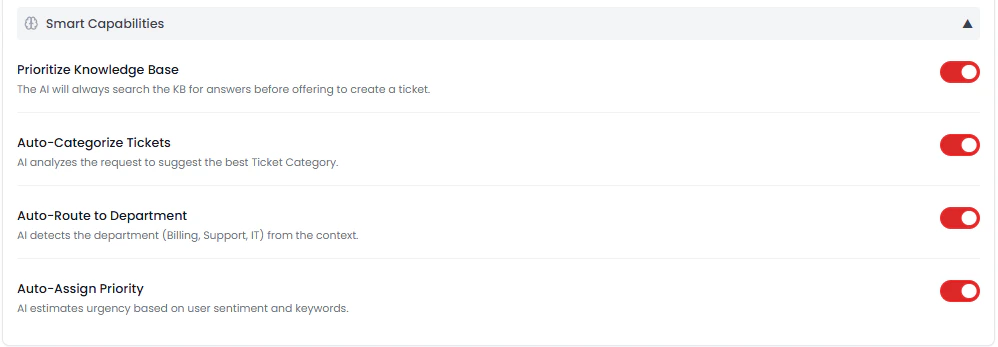
SafariDesk's AI Help Centre includes a suite of intelligent automation features that reduce manual effort and improve ticket quality from the moment a conversation begins.
 ### Prioritize Knowledge Base
The AI always searches your Knowledge Base before suggesting ticket creation. This ensures:
* Customers receive immediate answers to documented issues
* Ticket volume is reduced for common, repeatable questions
* Your existing documentation delivers ongoing value beyond passive browsing
> 💡 Keeping your Knowledge Base accurate and up to date directly improves the quality and reliability of AI responses.
### Auto-Categorize Tickets
When escalation is required, the AI analyses the customer's conversation and automatically suggests the most relevant **Ticket Category** — reducing the burden on agents to classify tickets manually and improving consistency across your support data.
### Auto-Route to Department
The AI identifies the appropriate department based on the context of the conversation — for example, routing billing questions to Finance and system issues to IT — ensuring tickets land with the right team from the start without manual intervention.
### Auto-Assign Priority
The AI evaluates urgency signals within the conversation, including:
* **Keywords** — Such as *"urgent"*, *"down"*, *"not working"*, *"critical"*
* **Customer sentiment** — Detecting frustration or distress in the message
Based on this analysis, it assigns an appropriate priority level so critical tickets are surfaced and actioned immediately.
## Customer-Facing Experience
On your Help Center or Support Portal, customers interact with the AI through a clean, accessible **chat widget** that guides them through support options step by step.
### Prioritize Knowledge Base
The AI always searches your Knowledge Base before suggesting ticket creation. This ensures:
* Customers receive immediate answers to documented issues
* Ticket volume is reduced for common, repeatable questions
* Your existing documentation delivers ongoing value beyond passive browsing
> 💡 Keeping your Knowledge Base accurate and up to date directly improves the quality and reliability of AI responses.
### Auto-Categorize Tickets
When escalation is required, the AI analyses the customer's conversation and automatically suggests the most relevant **Ticket Category** — reducing the burden on agents to classify tickets manually and improving consistency across your support data.
### Auto-Route to Department
The AI identifies the appropriate department based on the context of the conversation — for example, routing billing questions to Finance and system issues to IT — ensuring tickets land with the right team from the start without manual intervention.
### Auto-Assign Priority
The AI evaluates urgency signals within the conversation, including:
* **Keywords** — Such as *"urgent"*, *"down"*, *"not working"*, *"critical"*
* **Customer sentiment** — Detecting frustration or distress in the message
Based on this analysis, it assigns an appropriate priority level so critical tickets are surfaced and actioned immediately.
## Customer-Facing Experience
On your Help Center or Support Portal, customers interact with the AI through a clean, accessible **chat widget** that guides them through support options step by step.
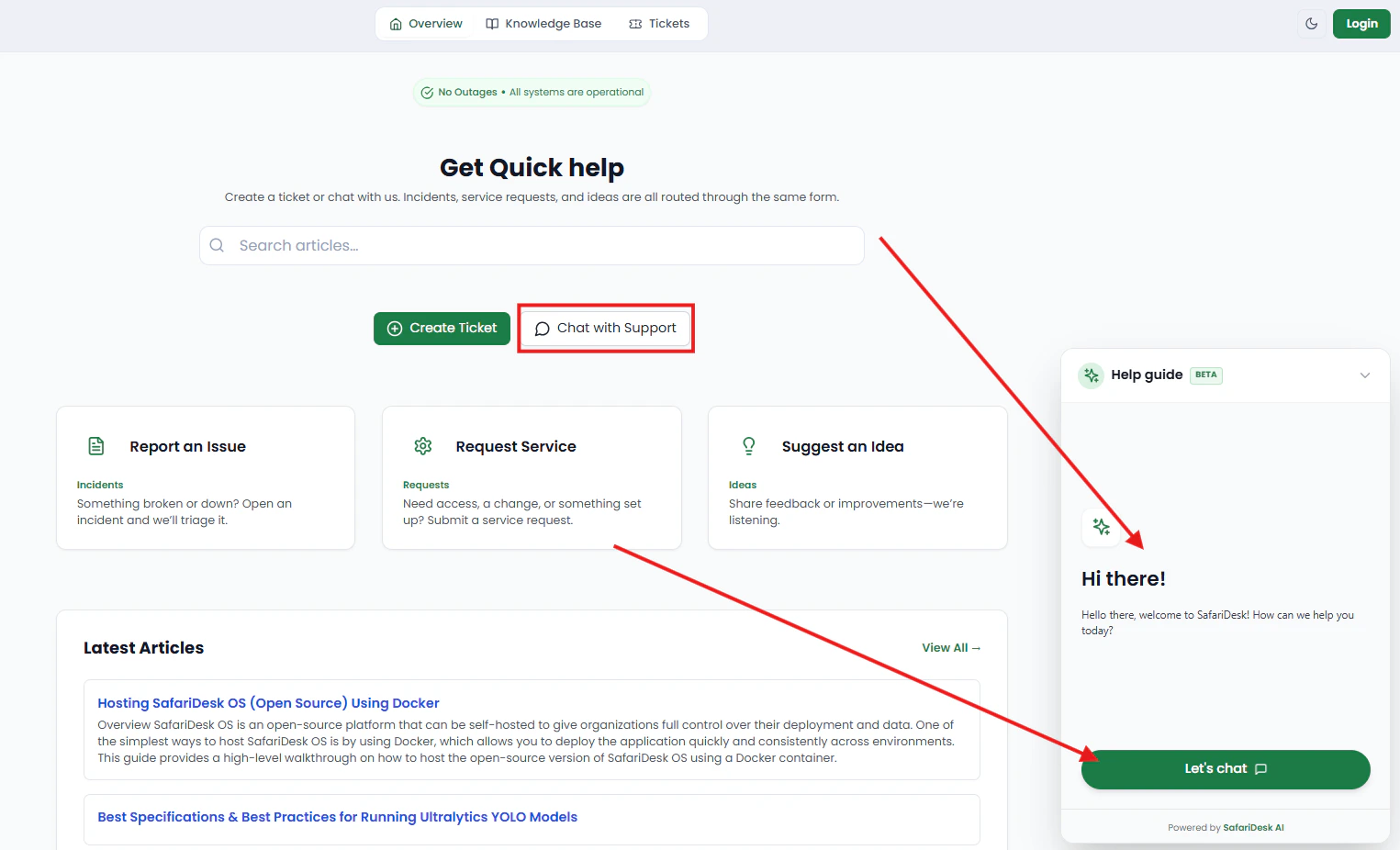 From the widget, customers can:
* Search for and browse **help articles**
* Chat directly with the **AI assistant** for instant answers
* **Create a support ticket** if their issue requires human attention
The experience is designed to feel seamless ,customers are guided naturally from self-service toward ticket creation only when necessary.
## Best Practices
To get the most value from the AI Help Centre:
* **Keep your Knowledge Base current** — The AI is only as good as the documentation behind it. Outdated or incomplete articles lead to poor AI responses and unnecessary escalations
* **Write clear, descriptive article titles** — The AI uses titles to match questions to content; vague titles reduce match accuracy
* **Tailor the greeting and tone to your brand** — A consistent voice across human and AI interactions builds customer trust
* **Use system instructions proactively** — Define guardrails early rather than adjusting reactively after problems arise
* **Monitor escalation patterns** — High escalation rates on specific topics are a signal to create or improve Knowledge Base articles in those areas
## Summary
The AI Help Centre transforms your Support Portal into an intelligent, always-on self-service experience. By combining Knowledge Base-driven answers with smart automation and seamless ticket escalation, it enables your team to:
* **Reduce ticket volume** by resolving common questions instantly without agent involvement
* **Improve response times** with 24/7 availability across all time zones
* **Increase ticket quality** through automatic categorization, routing, and priority assignment
* **Deliver a consistent brand experience** through a fully customizable AI persona and voice
Properly configured, the AI Help Centre becomes one of your most effective support tools — handling the routine so your team can focus on the complex.
## Need Help?
If you have any questions or need assistance, contact our support team at\
[**support@safaridesk.com**](mailto:support@safaridesk.com)\*\*. \*\*We're always here to help you get the most out of SafariDesk.
From the widget, customers can:
* Search for and browse **help articles**
* Chat directly with the **AI assistant** for instant answers
* **Create a support ticket** if their issue requires human attention
The experience is designed to feel seamless ,customers are guided naturally from self-service toward ticket creation only when necessary.
## Best Practices
To get the most value from the AI Help Centre:
* **Keep your Knowledge Base current** — The AI is only as good as the documentation behind it. Outdated or incomplete articles lead to poor AI responses and unnecessary escalations
* **Write clear, descriptive article titles** — The AI uses titles to match questions to content; vague titles reduce match accuracy
* **Tailor the greeting and tone to your brand** — A consistent voice across human and AI interactions builds customer trust
* **Use system instructions proactively** — Define guardrails early rather than adjusting reactively after problems arise
* **Monitor escalation patterns** — High escalation rates on specific topics are a signal to create or improve Knowledge Base articles in those areas
## Summary
The AI Help Centre transforms your Support Portal into an intelligent, always-on self-service experience. By combining Knowledge Base-driven answers with smart automation and seamless ticket escalation, it enables your team to:
* **Reduce ticket volume** by resolving common questions instantly without agent involvement
* **Improve response times** with 24/7 availability across all time zones
* **Increase ticket quality** through automatic categorization, routing, and priority assignment
* **Deliver a consistent brand experience** through a fully customizable AI persona and voice
Properly configured, the AI Help Centre becomes one of your most effective support tools — handling the routine so your team can focus on the complex.
## Need Help?
If you have any questions or need assistance, contact our support team at\
[**support@safaridesk.com**](mailto:support@safaridesk.com)\*\*. \*\*We're always here to help you get the most out of SafariDesk.