> ## Documentation Index
> Fetch the complete documentation index at: https://docs.safaridesk.io/llms.txt
> Use this file to discover all available pages before exploring further.
# Labels in SafariDesk
> Create and manage labels in SafariDesk to organize, tag, and highlight tickets and tasks across your workspace. Learn how to apply labels, manage their status, and use them for cross-functional visibility, filtering, and reporting.
## Labels Overview
**Labels** in SafariDesk are flexible tags used to organize, categorize, and highlight tickets and tasks across your workspace.
They work similarly to **GitHub-style labels** allowing you and your team to instantly identify the nature, priority, or context of a ticket or task at a glance.
Labels can be applied to both:
* **Tickets**
* **Tasks**
This makes them a powerful organizational tool that works across departments and categories, adding a layer of context that fits your team's specific workflow.
## Why Labels Matter
Labels help your team:
* Quickly identify important or sensitive tickets (e.g., *At Risk Client*, *Keep an Eye*)
* Group similar issues across different departments without restructuring your setup
* Improve filtering and searching across your ticket and task lists
* Add internal context without altering ticket structure or routing
* Track recurring patterns like bugs, feature requests, or urgent follow-ups
Unlike departments or categories, labels are **flexible and non-restrictive** you can apply multiple labels to a single ticket or task, giving you full freedom to layer context as needed.
## Accessing Labels
Navigate to:
**Configuration → Labels**
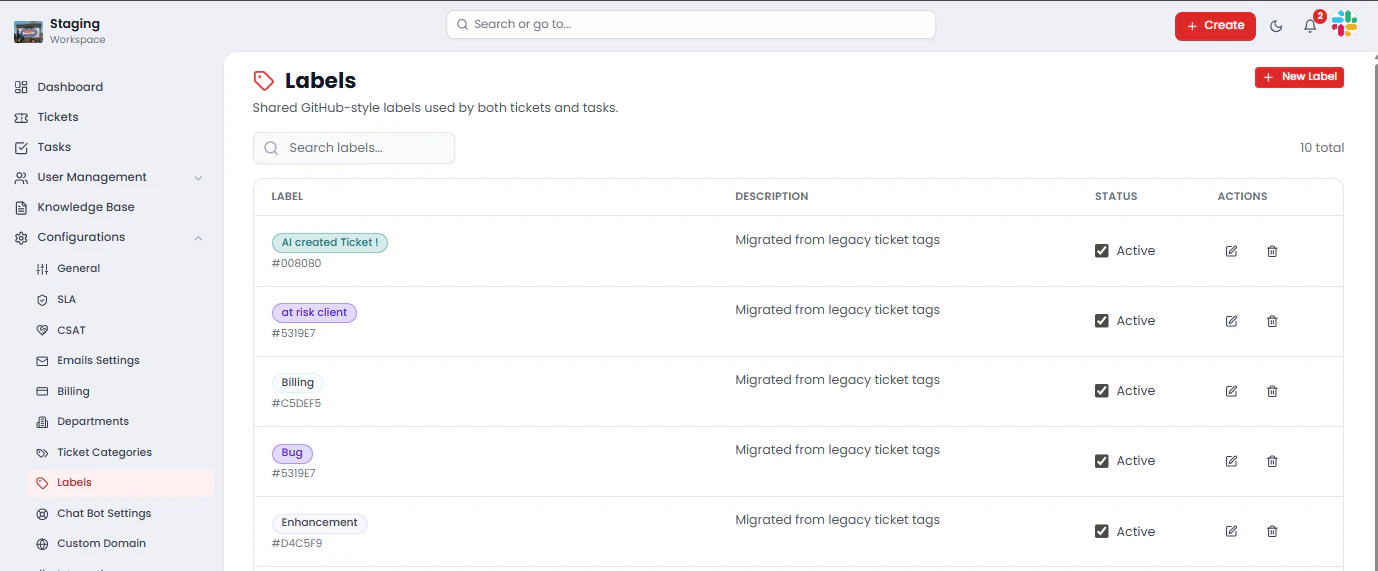 This page displays all labels in your workspace along with:
* **Label Name**
* **Color Code**
* **Description**
* **Status** (Active / Inactive)
* **Actions** (Edit, Delete)
## Creating a Label
To create a new label:
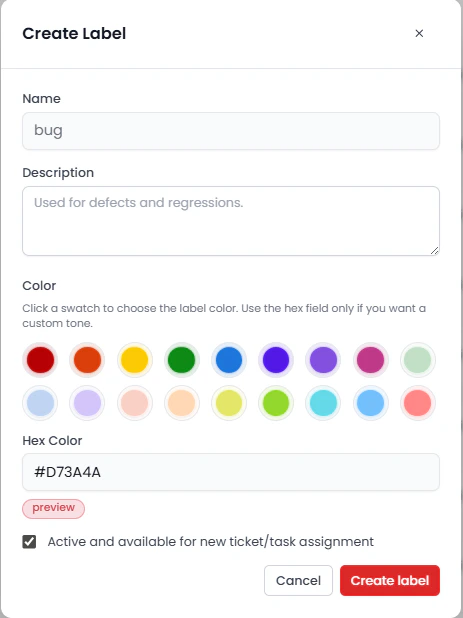
1. Click **New Label**
2. Fill in the following details:
* **Label Name** — A clear, descriptive name (e.g., *Bug*, *Feature Request*, *VIP Client*)
* **Color** — Choose a color for quick visual identification across the workspace
* **Description** *(optional)* — A brief explanation of when or how the label should be used
3. Click **Create**
This page displays all labels in your workspace along with:
* **Label Name**
* **Color Code**
* **Description**
* **Status** (Active / Inactive)
* **Actions** (Edit, Delete)
## Creating a Label
To create a new label:
1. Click **New Label**
2. Fill in the following details:
* **Label Name** — A clear, descriptive name (e.g., *Bug*, *Feature Request*, *VIP Client*)
* **Color** — Choose a color for quick visual identification across the workspace
* **Description** *(optional)* — A brief explanation of when or how the label should be used
3. Click **Create**
 > 💡 Establish consistent naming conventions and color coding from the start. This makes labels immediately recognizable to your entire team without needing explanation.
## Applying Labels to Tickets
Labels can be assigned at the point of ticket creation:
1. Navigate to the **Labels** field during ticket creation
2. Search for and select one or more labels
3. Continue creating the ticket as normal
> 💡 Establish consistent naming conventions and color coding from the start. This makes labels immediately recognizable to your entire team without needing explanation.
## Applying Labels to Tickets
Labels can be assigned at the point of ticket creation:
1. Navigate to the **Labels** field during ticket creation
2. Search for and select one or more labels
3. Continue creating the ticket as normal
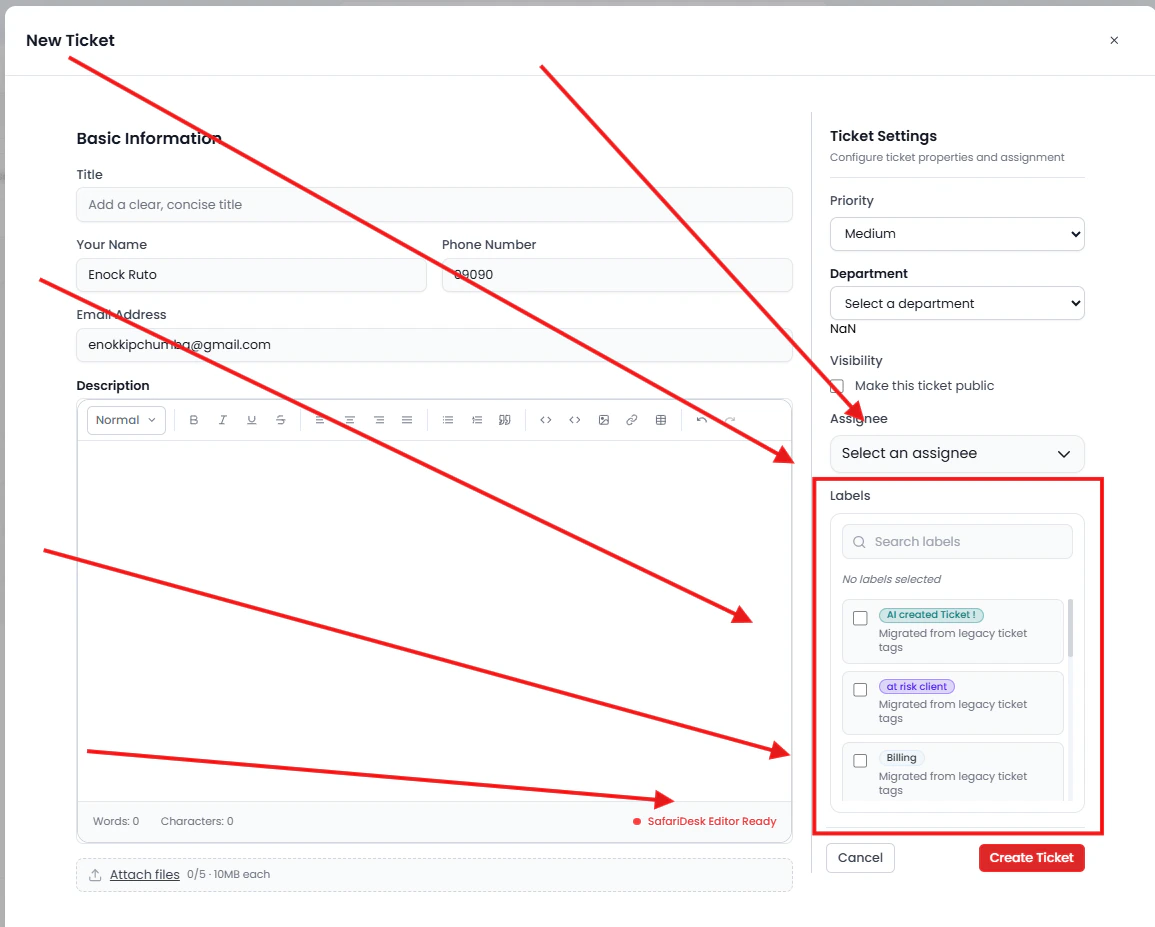 The selected labels will be attached to the ticket immediately and visible across your ticket list and filters.
## Adding or Removing Labels from Existing Tickets
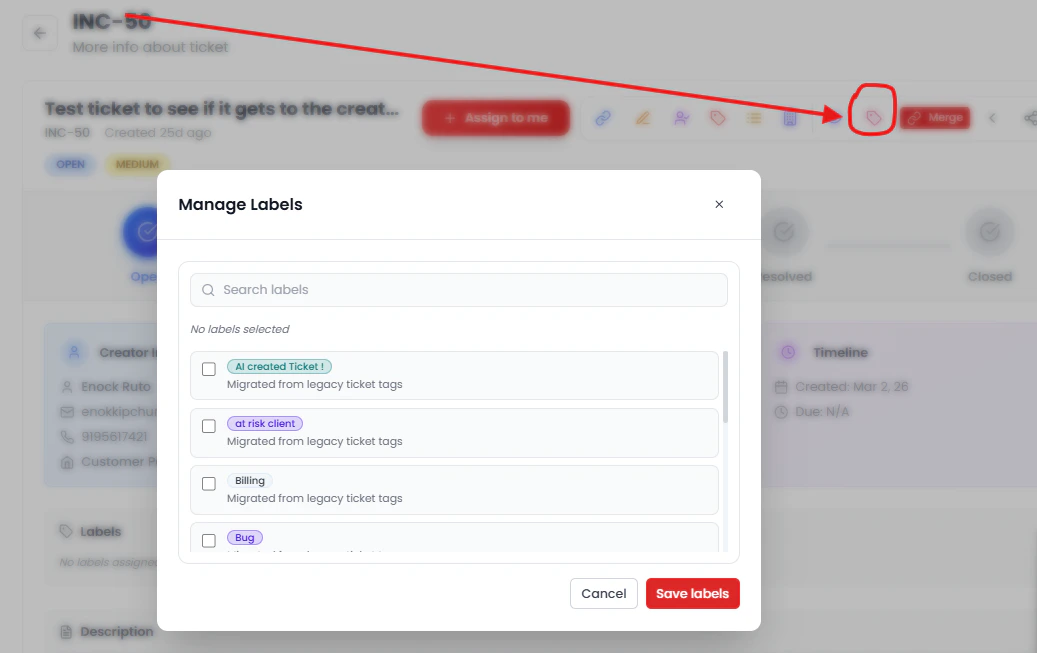
Labels can also be updated after a ticket has been created, allowing agents to reflect changes in context as the ticket progresses:
1. Open the relevant ticket
2. Navigate to the **Labels** section in the ticket detail panel
3. Add or remove labels as needed
This flexibility ensures labels always reflect the current state of a ticket, even as circumstances evolve.
The selected labels will be attached to the ticket immediately and visible across your ticket list and filters.
## Adding or Removing Labels from Existing Tickets
Labels can also be updated after a ticket has been created, allowing agents to reflect changes in context as the ticket progresses:
1. Open the relevant ticket
2. Navigate to the **Labels** section in the ticket detail panel
3. Add or remove labels as needed
This flexibility ensures labels always reflect the current state of a ticket, even as circumstances evolve.
 ## Using Labels with Tasks
Labels are not limited to tickets — they can also be applied to **tasks** within SafariDesk.
This ensures a consistent organizational layer across both customer-facing support work and internal team tasks, making it easier to filter, track, and report on work items regardless of type.
## Label Status
Each label can be set to one of two states:
* **Active** — Available for selection and use across tickets and tasks
* **Inactive** — Hidden from selection but preserved in historical records
> 💡 Deactivating a label is the preferred approach when a label is no longer needed. It keeps your active label list clean without losing the context it provided on past tickets.
## Best Practices
To get the most value from Labels:
* **Keep names short and meaningful** — labels should be understood instantly without explanation
* **Use consistent color coding** — for example, red for urgent issues, yellow for items to monitor, green for positive signals
* **Avoid overlapping labels** — if two labels mean the same thing, consolidate them
* **Use labels for cross-department tagging** — they are ideal for patterns that span multiple teams, like *Bug* or *VIP Client*
* **Audit regularly** — deactivate or delete labels that are no longer relevant to keep the list focused
## Example Use Cases
Labels are most effective when used consistently for recognizable patterns across your workspace:
* **Bug** — Track software or system issues that need investigation regardless of department
* **Feature Request** — Collect and surface product improvement ideas from customers
* **At Risk Client** — Flag high-priority tickets tied to customers who may be at risk of churning
* **Keep an Eye** — Monitor tickets that have not escalated yet but may require attention soon
## Saving Changes
After creating or editing a label, click **Create** or **Save** to apply your changes.
> ⚠️ Unsaved changes will not be applied.
## Summary
Labels in SafariDesk provide a lightweight but powerful way to add context, visibility, and organization to both tickets and tasks — without disrupting your existing department and category structure.
By using labels effectively, your team can:
* **Improve ticket visibility** with instant visual context across lists and dashboards
* **Layer meaningful context** onto work items beyond standard classification
* **Enhance filtering and reporting** to surface patterns and trends
* **Support cross-team collaboration** on issues that span multiple departments
## Need Help?
If you have any questions or need assistance, contact our support team at\
[**support@safaridesk.com**](mailto:support@safaridesk.com)\*\*. \*\*We're always here to help you get the most out of SafariDesk.
## Using Labels with Tasks
Labels are not limited to tickets — they can also be applied to **tasks** within SafariDesk.
This ensures a consistent organizational layer across both customer-facing support work and internal team tasks, making it easier to filter, track, and report on work items regardless of type.
## Label Status
Each label can be set to one of two states:
* **Active** — Available for selection and use across tickets and tasks
* **Inactive** — Hidden from selection but preserved in historical records
> 💡 Deactivating a label is the preferred approach when a label is no longer needed. It keeps your active label list clean without losing the context it provided on past tickets.
## Best Practices
To get the most value from Labels:
* **Keep names short and meaningful** — labels should be understood instantly without explanation
* **Use consistent color coding** — for example, red for urgent issues, yellow for items to monitor, green for positive signals
* **Avoid overlapping labels** — if two labels mean the same thing, consolidate them
* **Use labels for cross-department tagging** — they are ideal for patterns that span multiple teams, like *Bug* or *VIP Client*
* **Audit regularly** — deactivate or delete labels that are no longer relevant to keep the list focused
## Example Use Cases
Labels are most effective when used consistently for recognizable patterns across your workspace:
* **Bug** — Track software or system issues that need investigation regardless of department
* **Feature Request** — Collect and surface product improvement ideas from customers
* **At Risk Client** — Flag high-priority tickets tied to customers who may be at risk of churning
* **Keep an Eye** — Monitor tickets that have not escalated yet but may require attention soon
## Saving Changes
After creating or editing a label, click **Create** or **Save** to apply your changes.
> ⚠️ Unsaved changes will not be applied.
## Summary
Labels in SafariDesk provide a lightweight but powerful way to add context, visibility, and organization to both tickets and tasks — without disrupting your existing department and category structure.
By using labels effectively, your team can:
* **Improve ticket visibility** with instant visual context across lists and dashboards
* **Layer meaningful context** onto work items beyond standard classification
* **Enhance filtering and reporting** to surface patterns and trends
* **Support cross-team collaboration** on issues that span multiple departments
## Need Help?
If you have any questions or need assistance, contact our support team at\
[**support@safaridesk.com**](mailto:support@safaridesk.com)\*\*. \*\*We're always here to help you get the most out of SafariDesk.