> ## Documentation Index
> Fetch the complete documentation index at: https://docs.safaridesk.io/llms.txt
> Use this file to discover all available pages before exploring further.
# Integrations in SafariDesk
> Connect SafariDesk with your favorite tools and services. Learn how to integrate Slack, Email, Microsoft Teams, Telegram, and Webhooks to streamline ticket notifications, automate updates, and keep your team informed across every platform they use.
## Integrations Overview
The **Integrations** page in SafariDesk allows you to connect your workspace with the external tools and platforms your team already uses, so ticket notifications, updates, and alerts flow automatically into the right place without anyone having to manually check SafariDesk.
Whether your team lives in Slack, Microsoft Teams, or Telegram, integrations ensure that critical support activity is surfaced in real time, exactly where your team is working.
## Accessing Integrations
Navigate to:
**Configuration → Integrations**
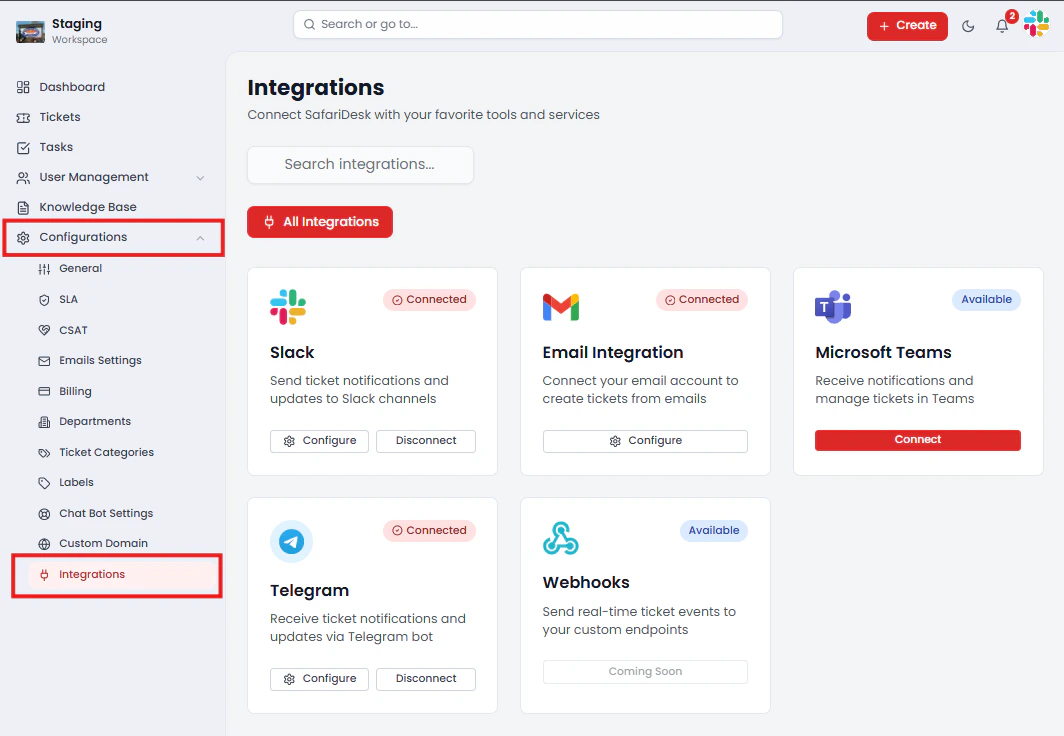 The Integrations page displays all available and connected integrations, each showing its current status and a quick action button.
## Available Integrations
| Integration | Status | Description |
| --------------------- | ----------- | --------------------------------------------------------- |
| **Slack** | Available | Send ticket notifications and updates to Slack channels |
| **Email Integration** | Available | Connect your email account to create tickets from emails |
| **Microsoft Teams** | Available | Receive notifications and manage tickets in Teams |
| **Telegram** | Available | Receive ticket notifications and updates via Telegram bot |
| **Webhooks** | Coming Soon | Send real-time ticket events to your custom endpoints |
| More Integrations | Coming Soon | |
## Slack Integration
The Slack integration allows SafariDesk to send real-time ticket notifications directly to your chosen Slack channels, keeping your team informed of new tickets, assignments, status changes, SLA breaches, and comments without leaving Slack.
### Connecting Slack
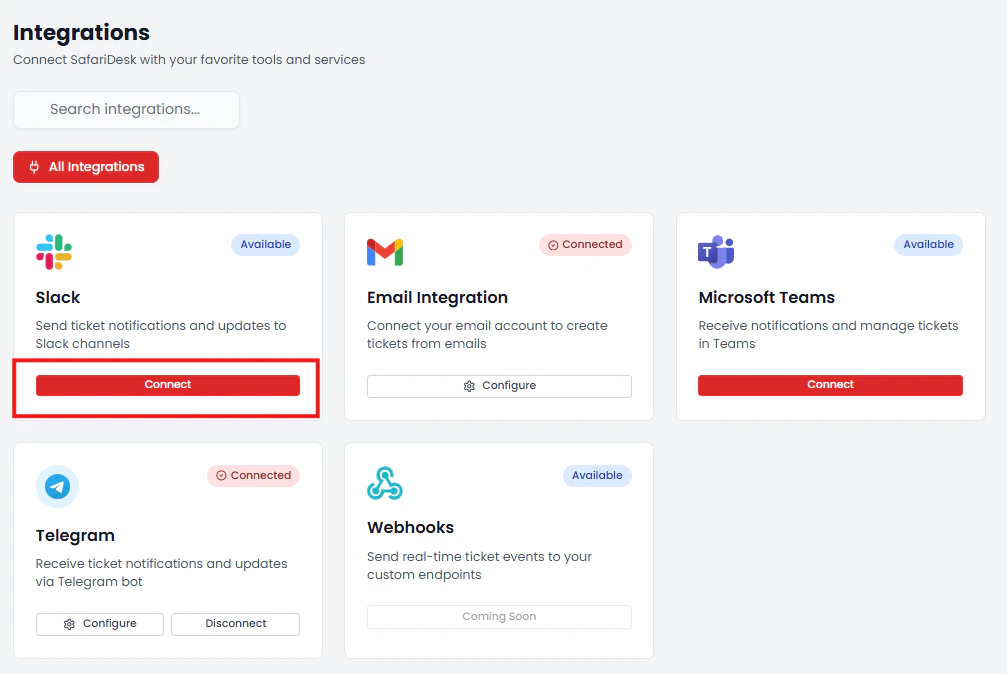
1. On the Integrations page, locate **Slack** and click **Connect**
2. You will be redirected to Slack's authorization page
3. Review the permissions SafariDesk requires:
**SafariDesk can view:**
* Content and information about channels and conversations
* Content and information about your workspace
**SafariDesk can take actions in:**
* Channels and conversations
4. Click **Allow** to grant the permissions and authorize the connection
> 💡 SafariDesk connects to Slack using Slack's official OAuth flow. Your Slack credentials are never stored by SafariDesk — access is managed entirely through Slack's permission framework.
Once authorized, you will be returned to SafariDesk where the **Configure Slack Integration** panel will open automatically.
### Configuring the Slack Integration
The Integrations page displays all available and connected integrations, each showing its current status and a quick action button.
## Available Integrations
| Integration | Status | Description |
| --------------------- | ----------- | --------------------------------------------------------- |
| **Slack** | Available | Send ticket notifications and updates to Slack channels |
| **Email Integration** | Available | Connect your email account to create tickets from emails |
| **Microsoft Teams** | Available | Receive notifications and manage tickets in Teams |
| **Telegram** | Available | Receive ticket notifications and updates via Telegram bot |
| **Webhooks** | Coming Soon | Send real-time ticket events to your custom endpoints |
| More Integrations | Coming Soon | |
## Slack Integration
The Slack integration allows SafariDesk to send real-time ticket notifications directly to your chosen Slack channels, keeping your team informed of new tickets, assignments, status changes, SLA breaches, and comments without leaving Slack.
### Connecting Slack
1. On the Integrations page, locate **Slack** and click **Connect**
2. You will be redirected to Slack's authorization page
3. Review the permissions SafariDesk requires:
**SafariDesk can view:**
* Content and information about channels and conversations
* Content and information about your workspace
**SafariDesk can take actions in:**
* Channels and conversations
4. Click **Allow** to grant the permissions and authorize the connection
> 💡 SafariDesk connects to Slack using Slack's official OAuth flow. Your Slack credentials are never stored by SafariDesk — access is managed entirely through Slack's permission framework.
Once authorized, you will be returned to SafariDesk where the **Configure Slack Integration** panel will open automatically.
### Configuring the Slack Integration
 Once connected, the panel confirms your authorization status and provides the following configuration options.
#### Default Channel
Select the Slack channel where SafariDesk notification messages will be sent by default.
* Click the **Select a channel...** dropdown
* Choose the appropriate channel from your Slack workspace
> 💡 Use a dedicated support notifications channel such as `#support-alerts` or `#helpdesk` to keep ticket activity organized and separate from general team communication.
#### Notification Types
Choose which SafariDesk events trigger a Slack notification. Each notification type can be toggled on or off independently:
| Notification Type | Trigger |
| ------------------------- | --------------------------------------- |
| 🎫 **New Tickets** | When a new support ticket is created |
| 👤 **Ticket Assignments** | When a ticket is assigned to an agent |
| 📊 **Status Updates** | When a ticket's status changes |
| ⚠️ **SLA Breaches** | When an SLA deadline is missed |
| 💬 **Comments** | When a new comment is added to a ticket |
Enable only the notification types relevant to your team's workflow to avoid channel noise.
> 💡 **Recommended starting configuration:** Enable **New Tickets** to ensure your team is immediately aware of every incoming request. Add **SLA Breaches** if your team has active SLA policies that require rapid response. Start lean and expand notification types as your team identifies gaps.
### Saving Your Slack Configuration
Once you have selected your default channel and chosen your notification types:
1. Click **Save Configuration**
SafariDesk will immediately begin sending notifications to the selected Slack channel for every enabled event type.
> ⚠️ Clicking **Cancel** will discard any unsaved changes to your Slack configuration without disconnecting the integration.
### How Slack Notifications Work
Once configured, your team will receive a Slack message in the selected channel every time a enabled event occurs in SafariDesk. For example, when **New Tickets** is enabled, a notification will appear in your channel each time a customer submits a ticket — giving your team instant visibility without needing to be logged into SafariDesk.
This creates a real-time support awareness loop: your team sees new activity in Slack, responds in SafariDesk, and customers receive timely updates — all without anyone missing a beat.
***
## Email Integration
The Email Integration connects your email mailboxes to SafariDesk so that inbound emails are automatically converted into support tickets.
Click **Configure** to manage your connected mailboxes, settings, templates, and filters.
> 💡 For a full walkthrough of the Email Integration, refer to the [Email Settings documentation.](#https://docs.safaridesk.io/SafariDesk-email-configuration)
## Microsoft Teams Integration
The Microsoft Teams integration allows SafariDesk to send ticket notifications and updates directly into your Teams channels, keeping your team informed without switching between platforms.
Click **Connect** to begin the Teams authorization flow.
> 🔜 Full configuration details will be available once the integration is connected.
## Telegram Integration
The Telegram integration delivers ticket notifications and updates to your team via a Telegram bot — ideal for teams that use Telegram for internal communication.
If already connected, click **Configure** to adjust notification settings or **Disconnect** to remove the integration.
> 🔜 Full configuration details will be available once the integration is connected.
## Webhooks
Webhooks will allow SafariDesk to send real-time ticket event data to any custom endpoint — enabling deep integration with internal tools, custom dashboards, and automation workflows.
> 🔜 **Coming Soon.** Webhooks are currently in development and will be available in a future SafariDesk update.
## Summary
The Integrations module in SafariDesk connects your support operation to the platforms your team already relies on — eliminating the need to constantly monitor SafariDesk directly and ensuring critical ticket activity is always surfaced in the right place at the right time.
With integrations properly configured, your team can:
* **Receive instant Slack notifications** for new tickets, assignments, SLA breaches, and more
* **Auto-create tickets from inbound email** through the Email Integration
* **Stay informed in Microsoft Teams or Telegram** without switching tools
* **Build custom automation** through Webhooks once available
The result is a more connected, responsive, and efficient support team — working seamlessly across every tool in your stack.
## Need Help?
If you have any questions or need assistance, contact our support team at\
[**support@safaridesk.com**](mailto:support@safaridesk.com)
We're always here to help you get the most out of SafariDesk.
Once connected, the panel confirms your authorization status and provides the following configuration options.
#### Default Channel
Select the Slack channel where SafariDesk notification messages will be sent by default.
* Click the **Select a channel...** dropdown
* Choose the appropriate channel from your Slack workspace
> 💡 Use a dedicated support notifications channel such as `#support-alerts` or `#helpdesk` to keep ticket activity organized and separate from general team communication.
#### Notification Types
Choose which SafariDesk events trigger a Slack notification. Each notification type can be toggled on or off independently:
| Notification Type | Trigger |
| ------------------------- | --------------------------------------- |
| 🎫 **New Tickets** | When a new support ticket is created |
| 👤 **Ticket Assignments** | When a ticket is assigned to an agent |
| 📊 **Status Updates** | When a ticket's status changes |
| ⚠️ **SLA Breaches** | When an SLA deadline is missed |
| 💬 **Comments** | When a new comment is added to a ticket |
Enable only the notification types relevant to your team's workflow to avoid channel noise.
> 💡 **Recommended starting configuration:** Enable **New Tickets** to ensure your team is immediately aware of every incoming request. Add **SLA Breaches** if your team has active SLA policies that require rapid response. Start lean and expand notification types as your team identifies gaps.
### Saving Your Slack Configuration
Once you have selected your default channel and chosen your notification types:
1. Click **Save Configuration**
SafariDesk will immediately begin sending notifications to the selected Slack channel for every enabled event type.
> ⚠️ Clicking **Cancel** will discard any unsaved changes to your Slack configuration without disconnecting the integration.
### How Slack Notifications Work
Once configured, your team will receive a Slack message in the selected channel every time a enabled event occurs in SafariDesk. For example, when **New Tickets** is enabled, a notification will appear in your channel each time a customer submits a ticket — giving your team instant visibility without needing to be logged into SafariDesk.
This creates a real-time support awareness loop: your team sees new activity in Slack, responds in SafariDesk, and customers receive timely updates — all without anyone missing a beat.
***
## Email Integration
The Email Integration connects your email mailboxes to SafariDesk so that inbound emails are automatically converted into support tickets.
Click **Configure** to manage your connected mailboxes, settings, templates, and filters.
> 💡 For a full walkthrough of the Email Integration, refer to the [Email Settings documentation.](#https://docs.safaridesk.io/SafariDesk-email-configuration)
## Microsoft Teams Integration
The Microsoft Teams integration allows SafariDesk to send ticket notifications and updates directly into your Teams channels, keeping your team informed without switching between platforms.
Click **Connect** to begin the Teams authorization flow.
> 🔜 Full configuration details will be available once the integration is connected.
## Telegram Integration
The Telegram integration delivers ticket notifications and updates to your team via a Telegram bot — ideal for teams that use Telegram for internal communication.
If already connected, click **Configure** to adjust notification settings or **Disconnect** to remove the integration.
> 🔜 Full configuration details will be available once the integration is connected.
## Webhooks
Webhooks will allow SafariDesk to send real-time ticket event data to any custom endpoint — enabling deep integration with internal tools, custom dashboards, and automation workflows.
> 🔜 **Coming Soon.** Webhooks are currently in development and will be available in a future SafariDesk update.
## Summary
The Integrations module in SafariDesk connects your support operation to the platforms your team already relies on — eliminating the need to constantly monitor SafariDesk directly and ensuring critical ticket activity is always surfaced in the right place at the right time.
With integrations properly configured, your team can:
* **Receive instant Slack notifications** for new tickets, assignments, SLA breaches, and more
* **Auto-create tickets from inbound email** through the Email Integration
* **Stay informed in Microsoft Teams or Telegram** without switching tools
* **Build custom automation** through Webhooks once available
The result is a more connected, responsive, and efficient support team — working seamlessly across every tool in your stack.
## Need Help?
If you have any questions or need assistance, contact our support team at\
[**support@safaridesk.com**](mailto:support@safaridesk.com)
We're always here to help you get the most out of SafariDesk.