> ## Documentation Index
> Fetch the complete documentation index at: https://docs.safaridesk.io/llms.txt
> Use this file to discover all available pages before exploring further.
# Contacts Management in SafariDesk
> Learn how to manage customer contacts in SafariDesk. This guide covers creating, editing, searching, and deleting contacts, as well as adding internal notes and viewing ticket history. Keep your customer information organized to provide faster, more personalized support.
## Contacts Overview
The **Contacts** page in SafariDesk stores and manages all customer information associated with support interactions.
Whenever a customer submits a request, such as:
* Sending an email to your support address
* Creating a ticket through the customer portal
SafariDesk automatically creates a contact profile for them.
This ensures every interaction is tracked and linked to a specific customer.
## Accessing Contacts
Navigate to **User Management → Contacts** to view all customer records.
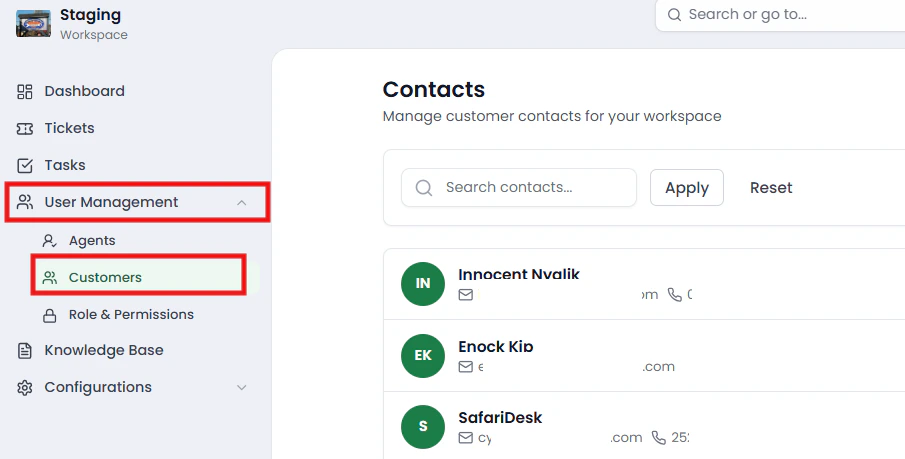 This page provides a centralized view of all your customers and their activity.
## Creating a Contact
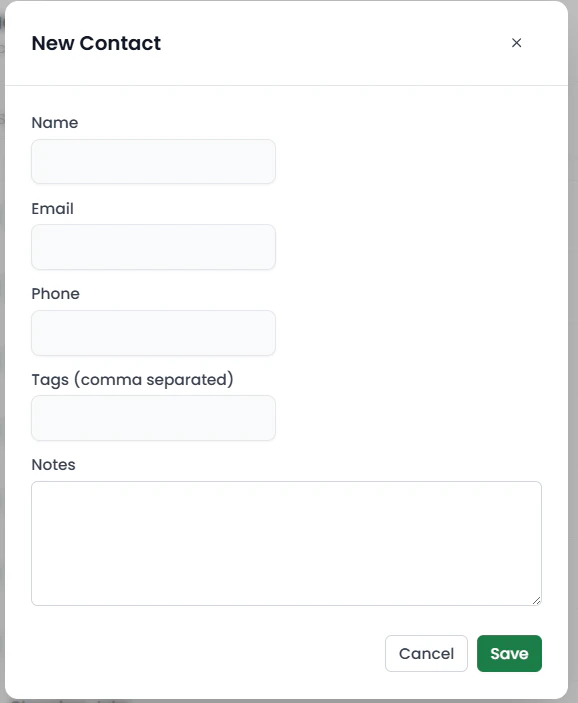
You can manually create a contact by clicking the **New Contact** button at the top right.
This page provides a centralized view of all your customers and their activity.
## Creating a Contact
You can manually create a contact by clicking the **New Contact** button at the top right.
 Enter the required details:
* Name
* Email
* Phone Number *(optional)*
Click **Create** to save the contact.
Enter the required details:
* Name
* Email
* Phone Number *(optional)*
Click **Create** to save the contact.
 ## Searching Contacts
Use the **search bar** at the top of the page to quickly find contacts by:
* Name | Email
This is especially useful when managing a large customer base.
## Searching Contacts
Use the **search bar** at the top of the page to quickly find contacts by:
* Name | Email
This is especially useful when managing a large customer base.
 ## Viewing Contact Details
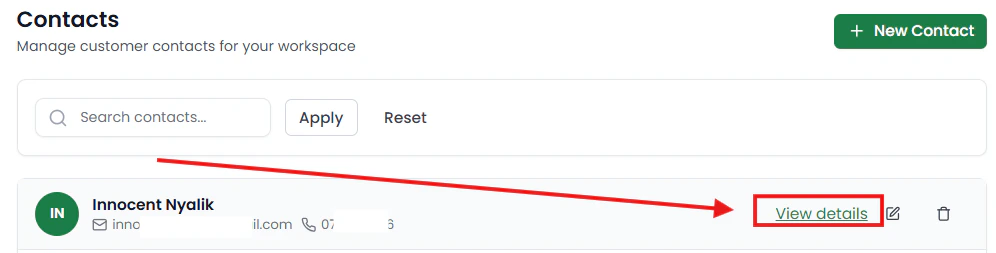
Click **View Details** to open a detailed view of a contact.
## Viewing Contact Details
Click **View Details** to open a detailed view of a contact.
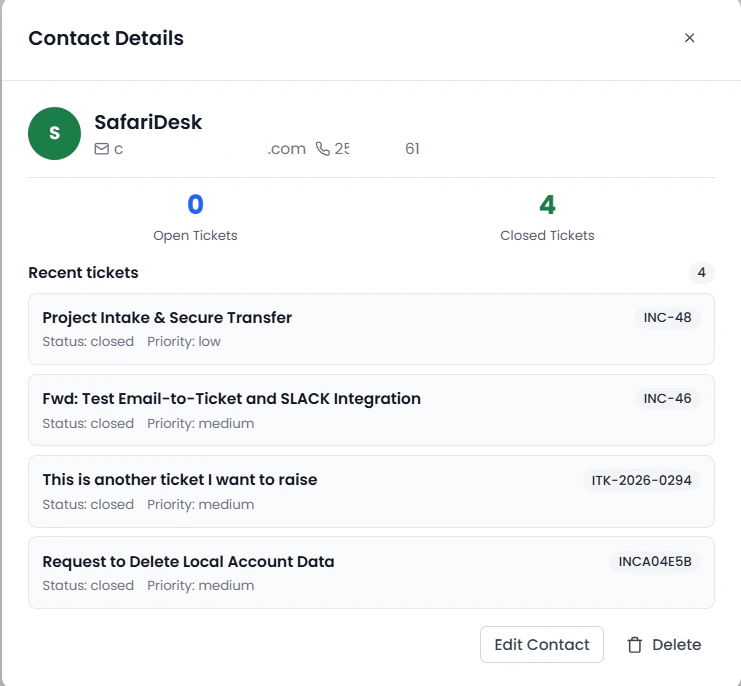
 This view provides:
* **Contact Information** (name, email, phone)
* **Ticket Summary**:
* Number of **Open Tickets**
* Number of **Closed Tickets**
This helps agents quickly understand the customer’s history and activity.
This view provides:
* **Contact Information** (name, email, phone)
* **Ticket Summary**:
* Number of **Open Tickets**
* Number of **Closed Tickets**
This helps agents quickly understand the customer’s history and activity.
 ## Editing a Contact
From the contact details view, you can update:
* Name | Email | Phone Number
### Internal Notes
You can also add **internal notes** to a contact.
* These notes are **only visible to your team**
* Useful for storing important context about the customer
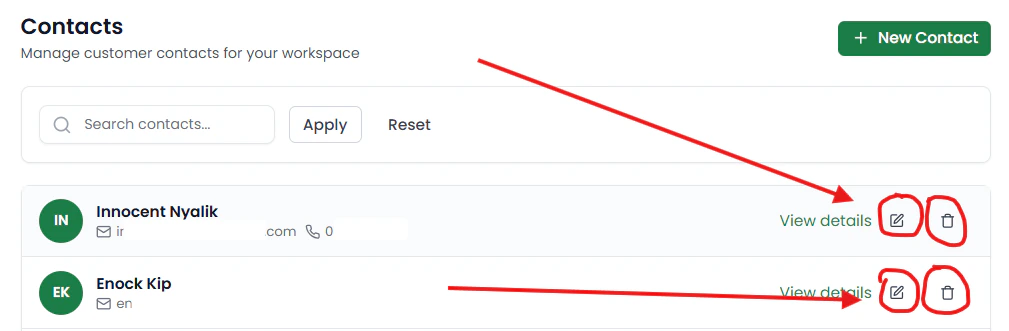
## Deleting a Contact
If needed, you can delete a contact from the system.
> ⚠️ Use caution when deleting contacts, as this may affect ticket history and tracking.
## Editing a Contact
From the contact details view, you can update:
* Name | Email | Phone Number
### Internal Notes
You can also add **internal notes** to a contact.
* These notes are **only visible to your team**
* Useful for storing important context about the customer
## Deleting a Contact
If needed, you can delete a contact from the system.
> ⚠️ Use caution when deleting contacts, as this may affect ticket history and tracking.
 ## Conclusion
Managing contacts effectively in SafariDesk helps you build a complete view of your customers and their interactions. By keeping contact information accurate and leveraging ticket history and internal notes, your team can provide faster, more informed, and more personalized support.
If you have any questions or need assistance, feel free to reach out to our support team at [**support@safaridesk.com**](mailto:support@safaridesk.com) — we’re always here to help.
## Conclusion
Managing contacts effectively in SafariDesk helps you build a complete view of your customers and their interactions. By keeping contact information accurate and leveraging ticket history and internal notes, your team can provide faster, more informed, and more personalized support.
If you have any questions or need assistance, feel free to reach out to our support team at [**support@safaridesk.com**](mailto:support@safaridesk.com) — we’re always here to help.