> ## Documentation Index
> Fetch the complete documentation index at: https://docs.safaridesk.io/llms.txt
> Use this file to discover all available pages before exploring further.
# SLA Management in SafariDesk
> Set up and manage Service Level Agreements (SLAs) in SafariDesk to monitor ticket response and resolution times. Learn how to enable SLA tracking, configure priority policies, define business hours, and manage holidays for accurate SLA measurement.
## SLA Management Overview
The **SLA (Service Level Agreement)** module in SafariDesk allows you to define, monitor, and enforce response and resolution time commitments across your support operation.
By configuring SLA policies, you ensure your team meets service expectations for every ticket — regardless of priority , while giving you clear visibility into performance and accountability.
SLA tracking integrates with your business hours and holiday schedule to ensure time is measured fairly and accurately.
## Accessing SLA Settings
Navigate to:
**Configuration → SLA**
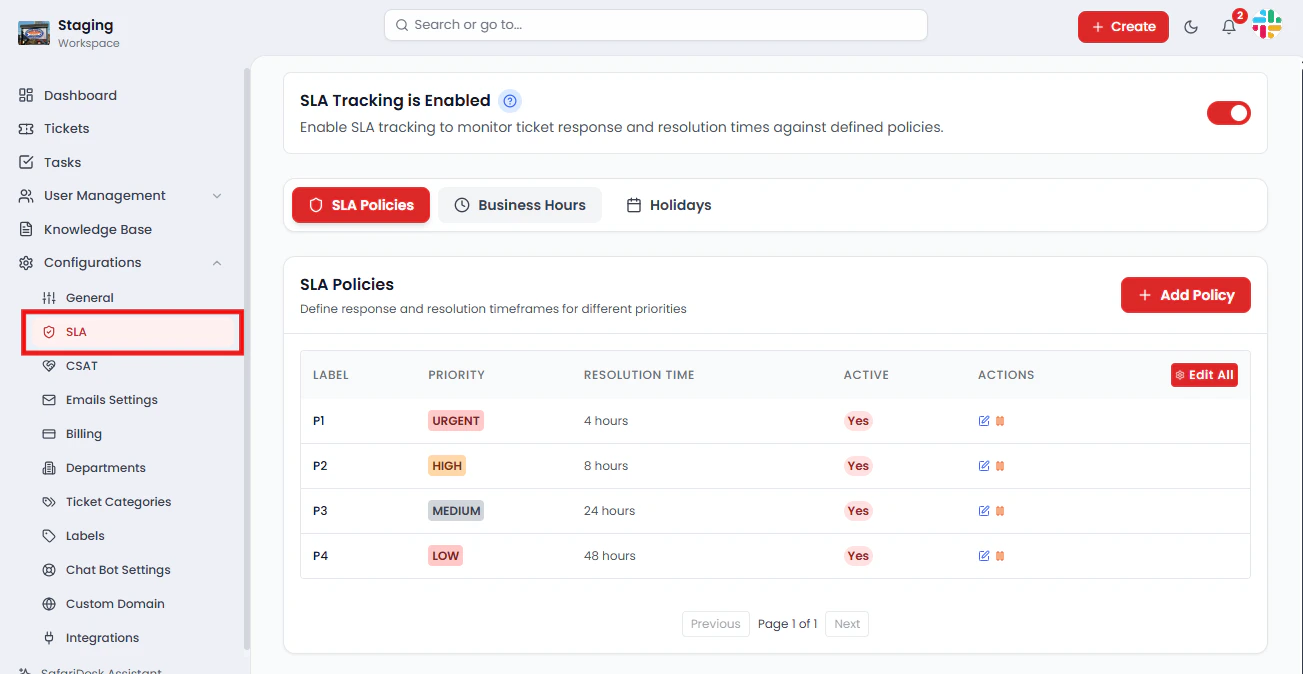 From this page, you can enable SLA tracking, manage priority policies, configure business hours, and define company holidays.
## Enabling SLA Tracking
Before any SLA policies take effect, you must enable the SLA tracking feature.
1. Navigate to **Configuration → SLA**
2. Toggle the **SLA Tracking** switch to **ON**
From this page, you can enable SLA tracking, manage priority policies, configure business hours, and define company holidays.
## Enabling SLA Tracking
Before any SLA policies take effect, you must enable the SLA tracking feature.
1. Navigate to **Configuration → SLA**
2. Toggle the **SLA Tracking** switch to **ON**
 > 💡 Once enabled, the SLA watchdog begins monitoring all ticket activity according to the policies, business hours, and holidays you have defined.
## SLA Policies
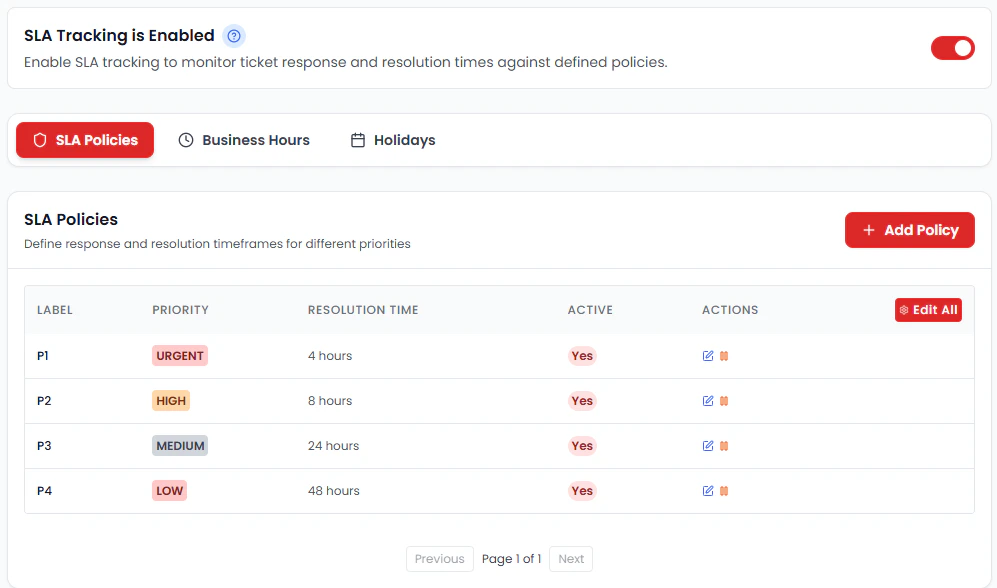
SLA policies define how quickly your team is expected to **respond to** and **resolve** tickets based on their assigned priority level.
SafariDesk uses four priority tiers:
| Label | Priority | Resolution Time | Active |
| ----- | -------- | --------------- | ------ |
| P1 | Urgent | 4 hours | Yes |
| P2 | High | 8 hours | Yes |
| P3 | Medium | 24 hours | Yes |
| P4 | Low | 48 hours | Yes |
> 💡 Once enabled, the SLA watchdog begins monitoring all ticket activity according to the policies, business hours, and holidays you have defined.
## SLA Policies
SLA policies define how quickly your team is expected to **respond to** and **resolve** tickets based on their assigned priority level.
SafariDesk uses four priority tiers:
| Label | Priority | Resolution Time | Active |
| ----- | -------- | --------------- | ------ |
| P1 | Urgent | 4 hours | Yes |
| P2 | High | 8 hours | Yes |
| P3 | Medium | 24 hours | Yes |
| P4 | Low | 48 hours | Yes |
 ### Editing SLA Policies
You can modify any policy to match your business requirements:
* Use **Actions → Edit** to update an individual priority policy
* Use **Edit All** to modify all priority levels at once
Editable fields per policy include:
* **Response Time** – How quickly an agent must first respond to the ticket
* **Resolution Time** – How quickly the ticket must be fully resolved
* **Priority Level** – Adjust the priority label and classification as needed
> ⚡ Changes to SLA policies apply to new tickets immediately after saving.
## Business Hours Configuration
SLA timers in SafariDesk respect your configured business hours —the clock only runs during the hours your team is actively working.
**Default business hours:**
* **Days:** Monday to Friday
* **Hours:** 9:00 AM – 5:00 PM
You can customize these hours to match your actual operational schedule.
### Editing SLA Policies
You can modify any policy to match your business requirements:
* Use **Actions → Edit** to update an individual priority policy
* Use **Edit All** to modify all priority levels at once
Editable fields per policy include:
* **Response Time** – How quickly an agent must first respond to the ticket
* **Resolution Time** – How quickly the ticket must be fully resolved
* **Priority Level** – Adjust the priority label and classification as needed
> ⚡ Changes to SLA policies apply to new tickets immediately after saving.
## Business Hours Configuration
SLA timers in SafariDesk respect your configured business hours —the clock only runs during the hours your team is actively working.
**Default business hours:**
* **Days:** Monday to Friday
* **Hours:** 9:00 AM – 5:00 PM
You can customize these hours to match your actual operational schedule.
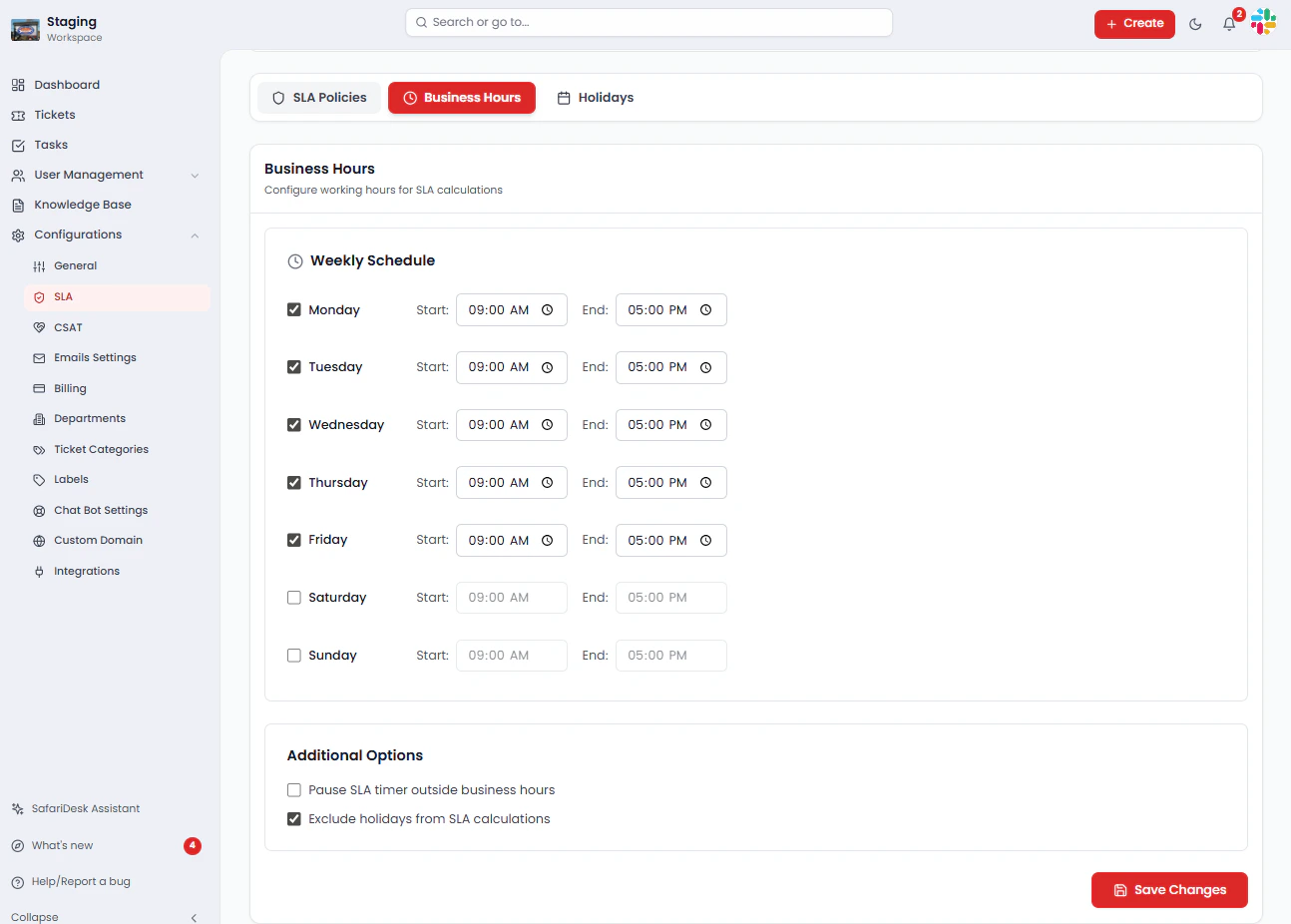 > ⏰ **Example:** A P1 ticket submitted on Friday at 4:00 PM with a 4-hour SLA will pause at 5:00 PM and resume at 9:00 AM the following Monday. This ensures your team is only measured against working hours, not downtime.
Accurate business hour configuration is essential for fair SLA measurement and reliable reporting.
## Holidays
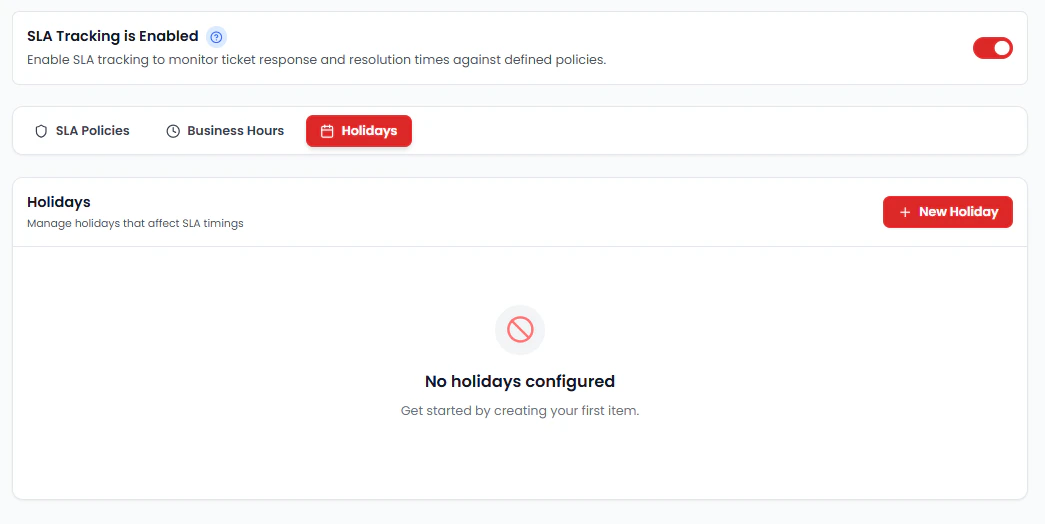
The **Holidays** section allows you to pause SLA timers on company-recognized non-working days, ensuring SLA violations are never triggered during periods when your team is not operating.
> ⏰ **Example:** A P1 ticket submitted on Friday at 4:00 PM with a 4-hour SLA will pause at 5:00 PM and resume at 9:00 AM the following Monday. This ensures your team is only measured against working hours, not downtime.
Accurate business hour configuration is essential for fair SLA measurement and reliable reporting.
## Holidays
The **Holidays** section allows you to pause SLA timers on company-recognized non-working days, ensuring SLA violations are never triggered during periods when your team is not operating.
 ### How Holiday SLA Pausing Works
* When a ticket is open during a configured holiday, the **SLA countdown is paused**
* The timer **resumes automatically** on the next active business day after the holiday ends
* Holidays can be configured as **single days** or **recurring annual dates**
> 💡 **Example:** If a ticket is due for resolution on December 25th (a configured holiday), the SLA timer will pause and resume on December 26th — preventing an automatic violation during the holiday.
### Adding Holidays
To add a holiday:
1. Navigate to the **Holidays** section within **Configuration → SLA**
2. Click **Add Holiday**
3. Enter the holiday name and date
4. Choose whether it is a **one-time** or **recurring** event
5. Click **Save**
Holidays you define here will be respected across all SLA policies automatically.
## Saving Changes
After making any updates to SLA policies, business hours, or holidays, click **Save Changes** to apply your configuration.
> ⚠️ Unsaved changes will not take effect.
## Summary
The SLA module in SafariDesk provides a complete framework for managing ticket response and resolution commitments:
* **SLA Tracking** – Enable real-time monitoring of all ticket activity
* **Priority Policies (P1–P4)** – Define response and resolution targets per ticket priority
* **Business Hours** – Ensure SLA timers only run during active working hours
* **Holidays** – Pause SLA countdowns on non-working days to prevent unfair violations
Proper SLA configuration helps your team stay accountable, identify bottlenecks early, and deliver a consistently reliable support experience for your customers.
## Need Help?
If you have any questions or need assistance, contact our support team at\
[**support@safaridesk.com**](mailto:support@safaridesk.com)\*\* \*\*We're always here to help you get the most out of SafariDesk.
### How Holiday SLA Pausing Works
* When a ticket is open during a configured holiday, the **SLA countdown is paused**
* The timer **resumes automatically** on the next active business day after the holiday ends
* Holidays can be configured as **single days** or **recurring annual dates**
> 💡 **Example:** If a ticket is due for resolution on December 25th (a configured holiday), the SLA timer will pause and resume on December 26th — preventing an automatic violation during the holiday.
### Adding Holidays
To add a holiday:
1. Navigate to the **Holidays** section within **Configuration → SLA**
2. Click **Add Holiday**
3. Enter the holiday name and date
4. Choose whether it is a **one-time** or **recurring** event
5. Click **Save**
Holidays you define here will be respected across all SLA policies automatically.
## Saving Changes
After making any updates to SLA policies, business hours, or holidays, click **Save Changes** to apply your configuration.
> ⚠️ Unsaved changes will not take effect.
## Summary
The SLA module in SafariDesk provides a complete framework for managing ticket response and resolution commitments:
* **SLA Tracking** – Enable real-time monitoring of all ticket activity
* **Priority Policies (P1–P4)** – Define response and resolution targets per ticket priority
* **Business Hours** – Ensure SLA timers only run during active working hours
* **Holidays** – Pause SLA countdowns on non-working days to prevent unfair violations
Proper SLA configuration helps your team stay accountable, identify bottlenecks early, and deliver a consistently reliable support experience for your customers.
## Need Help?
If you have any questions or need assistance, contact our support team at\
[**support@safaridesk.com**](mailto:support@safaridesk.com)\*\* \*\*We're always here to help you get the most out of SafariDesk.