> ## Documentation Index
> Fetch the complete documentation index at: https://docs.safaridesk.io/llms.txt
> Use this file to discover all available pages before exploring further.
# Ticket Categories in SafariDesk
> Create and manage ticket categories in SafariDesk to classify support requests into precise subtopics within departments. Learn how to set up categories, assign them to departments, and improve ticket routing, agent clarity, and reporting accuracy.
## Ticket Categories Overview
The **Ticket Categories** feature in SafariDesk allows you to organize and classify support tickets into specific subtopics within a department.
If **Departments** represent broad support areas, then **Categories act as the next level of detail** giving both customers and agents a clearer picture of what each ticket is about.
For example:
* **Department:** IT / Technology
* Categories: *Bug Report*, *Technical Support*
* **Department:** Sales
* Categories: *Billing / Payment*, *Feature Request*
This structure ensures tickets are clearly defined, accurately routed, and easier to manage at scale.
## Why Ticket Categories Matter
Categories improve your support workflow by:
* Making ticket classification more precise
* Helping agents quickly understand the nature of an issue
* Improving reporting and analytics across departments
* Enabling better ticket routing within specific teams
* Enhancing the customer experience during ticket submission
Without categories, tickets may lack the context needed to prioritize and resolve them efficiently.
## Accessing Ticket Categories
Navigate to:
**Configuration → Ticket Categories**
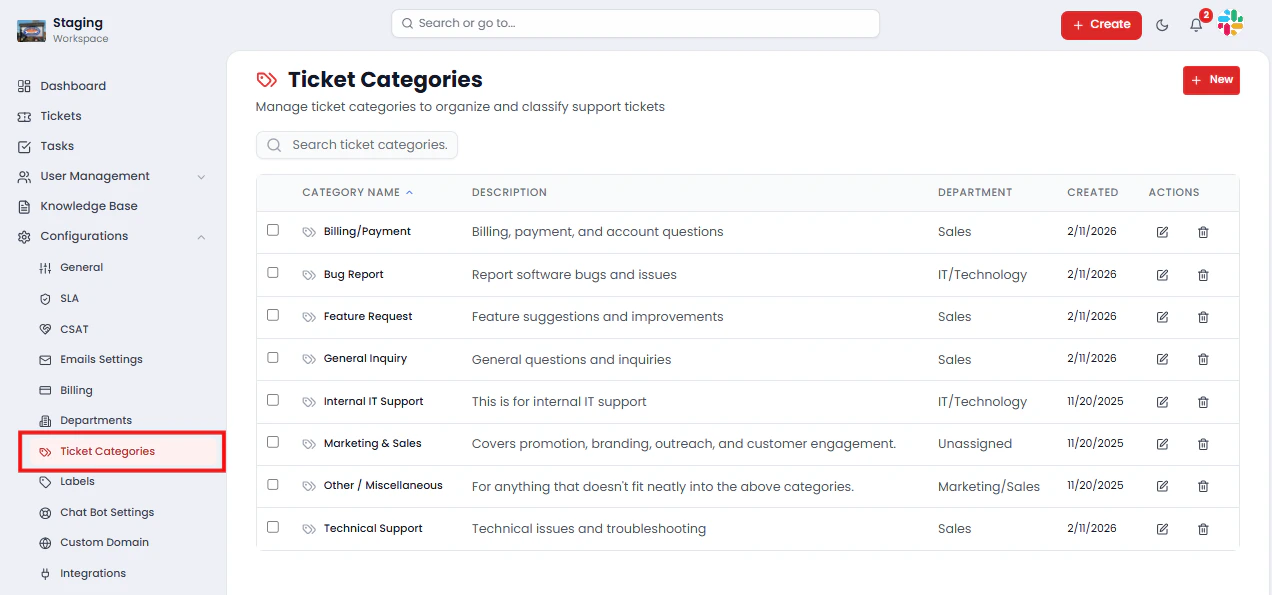 This page displays all categories in your workspace along with:
* **Category Name**
* **Description**
* **Department** (Assigned or Unassigned)
* **Created Date**
* **Actions** (Edit, Delete)
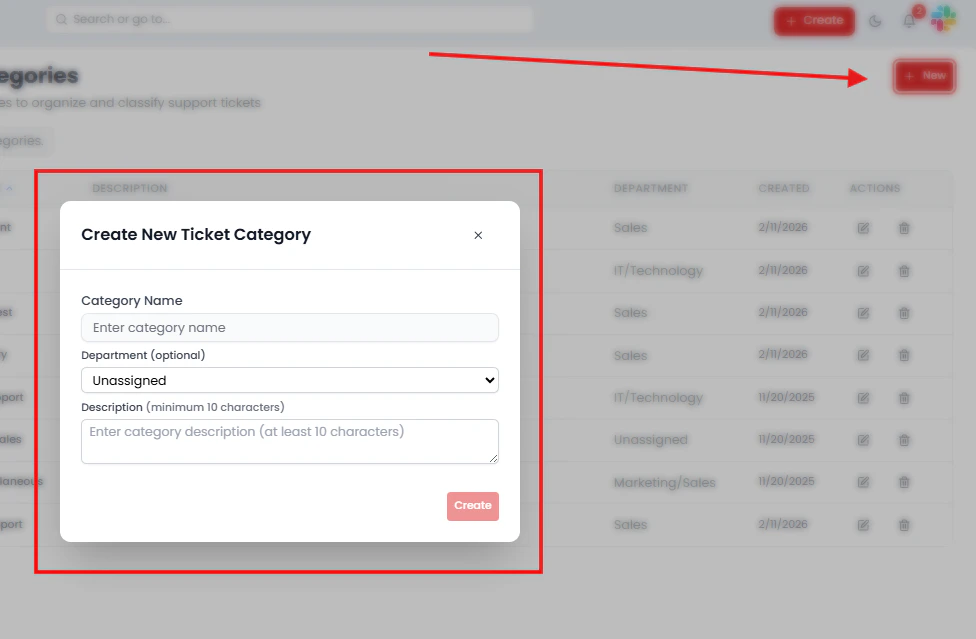
## Creating a Ticket Category
To create a new category:
1. Click the **New** button
2. Fill in the required fields:
* **Category Name** — A clear and descriptive label for the category
* **Department** *(optional)* — Assign the category to a specific department
* **Description** — A brief explanation of the category (minimum 10 characters)
3. Click **Create**
This page displays all categories in your workspace along with:
* **Category Name**
* **Description**
* **Department** (Assigned or Unassigned)
* **Created Date**
* **Actions** (Edit, Delete)
## Creating a Ticket Category
To create a new category:
1. Click the **New** button
2. Fill in the required fields:
* **Category Name** — A clear and descriptive label for the category
* **Department** *(optional)* — Assign the category to a specific department
* **Description** — A brief explanation of the category (minimum 10 characters)
3. Click **Create**
 > 💡 If no department is selected, the category will remain **Unassigned** and will not appear in department-specific ticket flows. Always assign categories to a department for consistent routing.
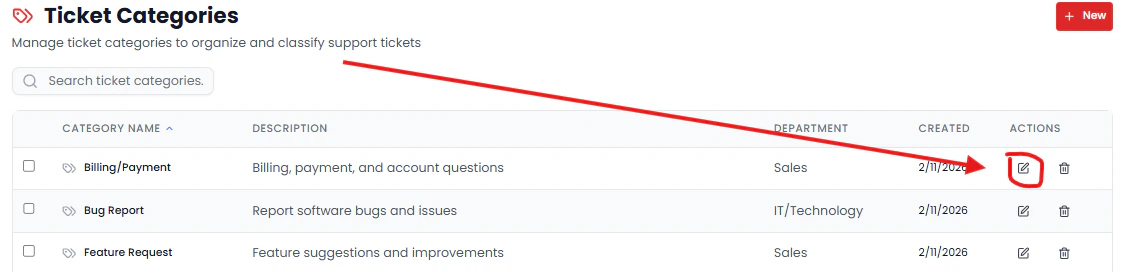
## Editing a Ticket Category
To update an existing category:
1. Click **Edit** from the **Actions** column
2. Modify the name, description, or department assignment as needed
3. Click **Save**
> 💡 If no department is selected, the category will remain **Unassigned** and will not appear in department-specific ticket flows. Always assign categories to a department for consistent routing.
## Editing a Ticket Category
To update an existing category:
1. Click **Edit** from the **Actions** column
2. Modify the name, description, or department assignment as needed
3. Click **Save**
 ## Deleting a Ticket Category
To remove a category that is no longer needed:
1. Click **Delete** from the **Actions** column
2. Confirm the deletion
> ⚠️ Deleting a category may affect how existing tickets are classified and reported. Review any active tickets associated with the category before proceeding.
## How Categories Work with Departments
Categories are closely tied to departments and drive the ticket classification flow your customers experience.
**Key behaviors to be aware of:**
* When a customer selects a **department**, only that department's **associated categories** are displayed
* **Unassigned categories** will not appear in structured department ticket flows
* Categories refine ticket classification within a department for more accurate routing and reporting
**Example workflow:**
1. A customer **creates a ticket**
2. They select **Department: IT / Technology**
3. **Available categories appear** — e.g., *Bug Report*, *Technical Support*
4. The ticket is submitted with both a department and a category attached
This ensures every ticket arrives with full context and reaches the right team without manual intervention.
## Best Practices
To get the most value from Ticket Categories:
* **Use clear, descriptive names** — agents and customers should instantly understand what a category means
* **Always assign categories to a department** — unassigned categories are easy to overlook and disrupt ticket flows
* **Avoid overlapping categories** — too many similar options create confusion during ticket submission
* **Keep descriptions concise but informative** — a single sentence is usually enough
* **Audit categories regularly** — remove or consolidate unused categories to keep the list clean and relevant
## Saving Changes
After creating or editing a category, click **Save** or **Create** to apply your changes.
> ⚠️ Unsaved changes will not be applied.
## Summary
Ticket Categories in SafariDesk provide the second layer of structure in your support system — working alongside Departments to ensure every ticket is precisely classified from the moment it is submitted.
By combining **Departments (broad areas)** with **Categories (specific subtopics)**, your team can:
* **Route tickets accurately** without manual reassignment
* **Give agents immediate context** on the nature of each issue
* **Improve reporting granularity** across teams and topics
* **Deliver a more structured, professional experience** for customers submitting requests
## Need Help?
If you have any questions or need assistance, contact our support team at\
[**support@safaridesk.com**](mailto:support@safaridesk.com)\*\* \*\*We're always here to help you get the most out of SafariDesk.
## Deleting a Ticket Category
To remove a category that is no longer needed:
1. Click **Delete** from the **Actions** column
2. Confirm the deletion
> ⚠️ Deleting a category may affect how existing tickets are classified and reported. Review any active tickets associated with the category before proceeding.
## How Categories Work with Departments
Categories are closely tied to departments and drive the ticket classification flow your customers experience.
**Key behaviors to be aware of:**
* When a customer selects a **department**, only that department's **associated categories** are displayed
* **Unassigned categories** will not appear in structured department ticket flows
* Categories refine ticket classification within a department for more accurate routing and reporting
**Example workflow:**
1. A customer **creates a ticket**
2. They select **Department: IT / Technology**
3. **Available categories appear** — e.g., *Bug Report*, *Technical Support*
4. The ticket is submitted with both a department and a category attached
This ensures every ticket arrives with full context and reaches the right team without manual intervention.
## Best Practices
To get the most value from Ticket Categories:
* **Use clear, descriptive names** — agents and customers should instantly understand what a category means
* **Always assign categories to a department** — unassigned categories are easy to overlook and disrupt ticket flows
* **Avoid overlapping categories** — too many similar options create confusion during ticket submission
* **Keep descriptions concise but informative** — a single sentence is usually enough
* **Audit categories regularly** — remove or consolidate unused categories to keep the list clean and relevant
## Saving Changes
After creating or editing a category, click **Save** or **Create** to apply your changes.
> ⚠️ Unsaved changes will not be applied.
## Summary
Ticket Categories in SafariDesk provide the second layer of structure in your support system — working alongside Departments to ensure every ticket is precisely classified from the moment it is submitted.
By combining **Departments (broad areas)** with **Categories (specific subtopics)**, your team can:
* **Route tickets accurately** without manual reassignment
* **Give agents immediate context** on the nature of each issue
* **Improve reporting granularity** across teams and topics
* **Deliver a more structured, professional experience** for customers submitting requests
## Need Help?
If you have any questions or need assistance, contact our support team at\
[**support@safaridesk.com**](mailto:support@safaridesk.com)\*\* \*\*We're always here to help you get the most out of SafariDesk.