> ## Documentation Index
> Fetch the complete documentation index at: https://docs.safaridesk.io/llms.txt
> Use this file to discover all available pages before exploring further.
# Departments in SafariDesk
> Organize your SafariDesk workspace by creating and managing departments. Learn how to group agents, route tickets, assign support emails, and use categories for precise ticket classification across your support operation.
## Departments Overview
The **Departments** feature in SafariDesk helps you organize your support system by grouping tickets, agents, and topics into logical units.
Think of a **department as a help topic or support area**, for example:
* Human Resources (HR)
* IT / Technology
* Marketing / Sales
Each department represents a specific function in your organization and ensures that tickets are routed to the right team.
## Why Departments Matter
Departments are essential for structuring your support workflow. They help you:
* Route tickets to the correct team automatically
* Assign the right agents to handle specific issues
* Organize support topics for better clarity
* Improve response times and accountability
Without departments, all tickets are centralized and harder to manage — especially as your team grows.
## Accessing Departments
Navigate to:
**Configuration → Departments**
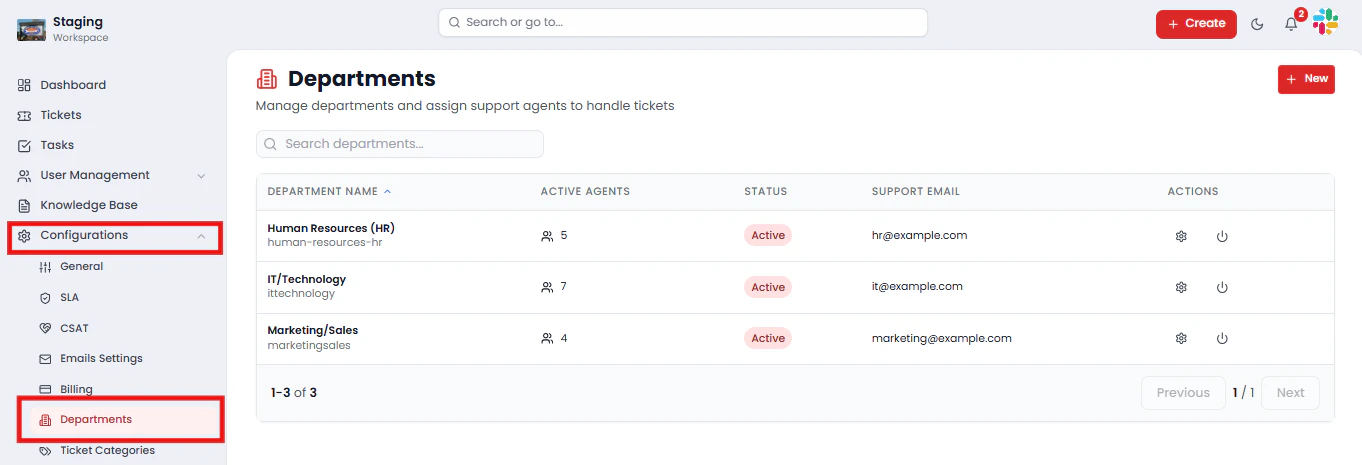 This page displays all departments in your workspace along with:
* **Department Name**
* **Active Agents**
* **Status** (Active / Inactive)
* **Support Email**
* **Actions** (Edit, Activate / Deactivate)
## Creating a Department
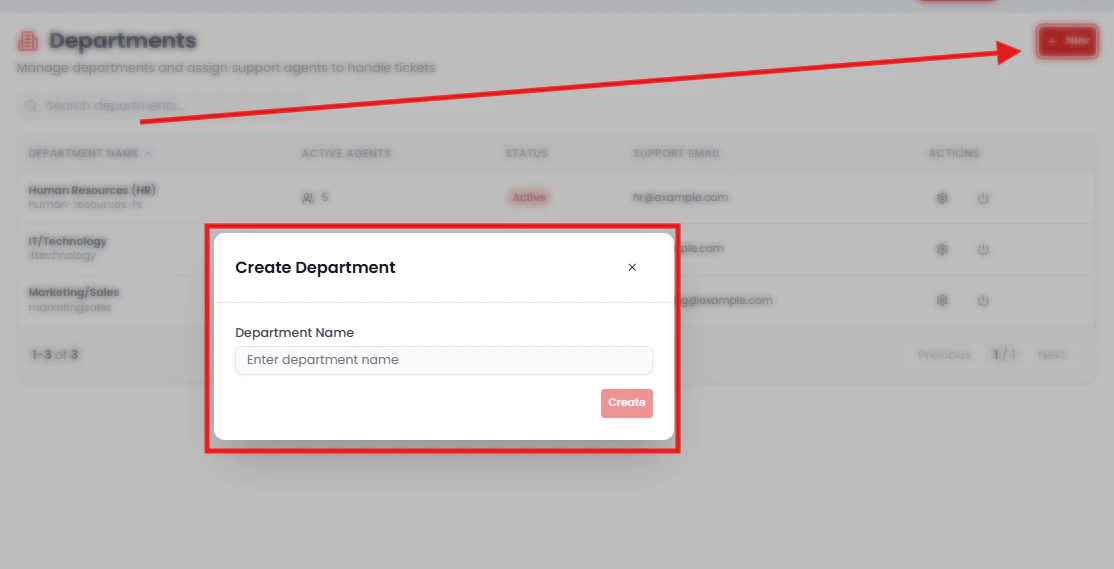
To create a new department:
1. Click the **New** button
2. Enter the **Department Name**
3. Assign a **Support Email** (optional but recommended)
4. Click **Save**
Once created, the department becomes immediately available for ticket assignment and agent configuration.
This page displays all departments in your workspace along with:
* **Department Name**
* **Active Agents**
* **Status** (Active / Inactive)
* **Support Email**
* **Actions** (Edit, Activate / Deactivate)
## Creating a Department
To create a new department:
1. Click the **New** button
2. Enter the **Department Name**
3. Assign a **Support Email** (optional but recommended)
4. Click **Save**
Once created, the department becomes immediately available for ticket assignment and agent configuration.
 ## Managing Department Settings
Click on any department to open its configuration panel.
## Managing Department Settings
Click on any department to open its configuration panel.
 ### General Settings
From the General tab, you can:
* Update the **Department Name**
* Assign a **Support Email**
* Change the **Department Status** (Active / Inactive)
> 💡 Only connected mailboxes will appear as selectable support email options. Make sure your mailboxes are configured under **Configuration → Inboxes** before assigning them here.
## Assigning Agents to a Department
Navigate to the **Agents** tab within a department to manage who has access.
### General Settings
From the General tab, you can:
* Update the **Department Name**
* Assign a **Support Email**
* Change the **Department Status** (Active / Inactive)
> 💡 Only connected mailboxes will appear as selectable support email options. Make sure your mailboxes are configured under **Configuration → Inboxes** before assigning them here.
## Assigning Agents to a Department
Navigate to the **Agents** tab within a department to manage who has access.
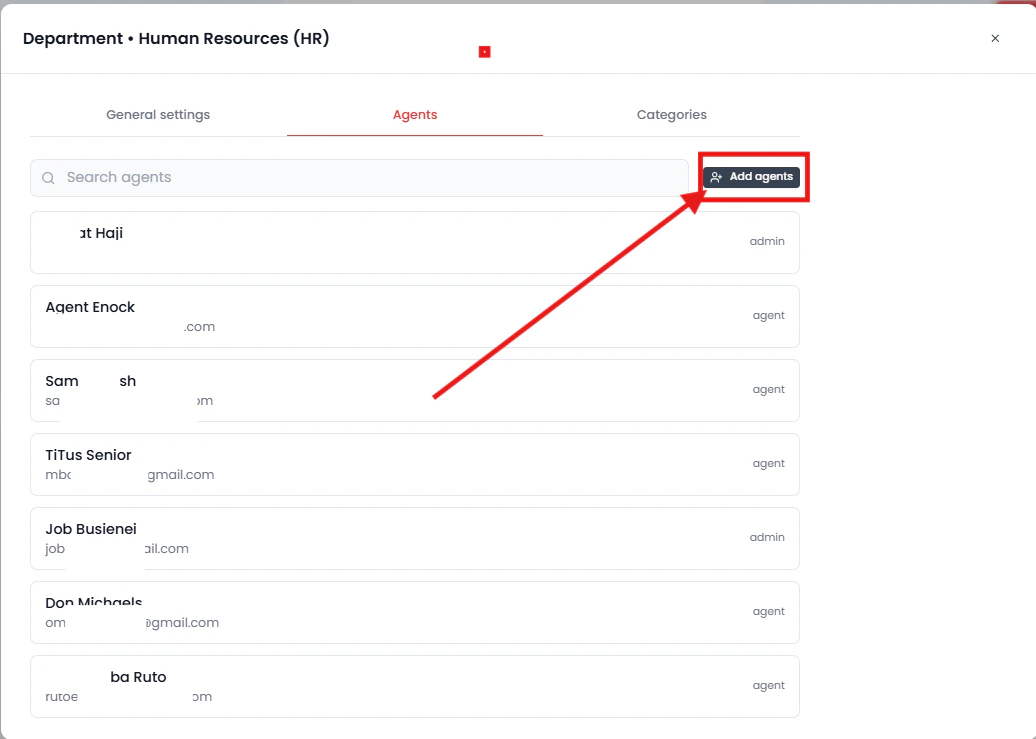 From here, you can:
* Add agents who are already in the system
* Control which agents can view and manage tickets within that department
> ⚠️ Only agents assigned to a department will have visibility into its tickets. Agents not listed here will not see tickets routed to that department.
## Managing Categories (Subtopics)
Departments can include **Categories**, which act as subtopics for more precise ticket classification within a department.
For example:
* **Department:** IT / Technology
* **Categories:** *Login Issues*, *System Bugs*, *Hardware Requests*
When a customer creates a ticket and selects a department, the **relevant categories for that department will automatically appear** for them to choose from.
This allows for more accurate ticket classification, better reporting, and faster routing to the right agent or team.
## How Ticket Routing Works
Once your departments and categories are configured, ticket routing follows this flow automatically:
1. A customer **creates a ticket**
2. They select a **Department**
3. Based on the department, **relevant categories appear** for further classification
4. The ticket is **routed to agents assigned** to that department
This ensures every ticket reaches the most appropriate team without manual reassignment or guesswork.
## Managing Department Status
Each department can be set to one of two states:
* **Active** — Visible and available for ticket assignment and customer selection
* **Inactive** — Hidden from ticket creation and unavailable for new assignments
> 💡 Deactivating a department preserves all historical ticket data. Use this option when a department is no longer in active use but you need to retain its records.
## Saving Changes
After updating any department settings, agents, or categories, click **Save Changes** to apply your configuration.
> ⚠️ Unsaved changes will not be applied.
## Summary
The Departments feature in SafariDesk provides a structured foundation for your entire support operation. By organizing tickets into departments, assigning the right agents, and using categories for deeper classification, your team can:
* **Route tickets accurately** to the correct team without manual intervention
* **Improve agent focus** by scoping visibility to relevant tickets only
* **Classify tickets precisely** using department-level categories
* **Scale support efficiently** as your organization and ticket volume grow
## Need Help?
If you have any questions or need assistance, contact our support team at\
[**support@safaridesk.com**](mailto:support@safaridesk.com)
We're always here to help you get the most out of SafariDesk.
From here, you can:
* Add agents who are already in the system
* Control which agents can view and manage tickets within that department
> ⚠️ Only agents assigned to a department will have visibility into its tickets. Agents not listed here will not see tickets routed to that department.
## Managing Categories (Subtopics)
Departments can include **Categories**, which act as subtopics for more precise ticket classification within a department.
For example:
* **Department:** IT / Technology
* **Categories:** *Login Issues*, *System Bugs*, *Hardware Requests*
When a customer creates a ticket and selects a department, the **relevant categories for that department will automatically appear** for them to choose from.
This allows for more accurate ticket classification, better reporting, and faster routing to the right agent or team.
## How Ticket Routing Works
Once your departments and categories are configured, ticket routing follows this flow automatically:
1. A customer **creates a ticket**
2. They select a **Department**
3. Based on the department, **relevant categories appear** for further classification
4. The ticket is **routed to agents assigned** to that department
This ensures every ticket reaches the most appropriate team without manual reassignment or guesswork.
## Managing Department Status
Each department can be set to one of two states:
* **Active** — Visible and available for ticket assignment and customer selection
* **Inactive** — Hidden from ticket creation and unavailable for new assignments
> 💡 Deactivating a department preserves all historical ticket data. Use this option when a department is no longer in active use but you need to retain its records.
## Saving Changes
After updating any department settings, agents, or categories, click **Save Changes** to apply your configuration.
> ⚠️ Unsaved changes will not be applied.
## Summary
The Departments feature in SafariDesk provides a structured foundation for your entire support operation. By organizing tickets into departments, assigning the right agents, and using categories for deeper classification, your team can:
* **Route tickets accurately** to the correct team without manual intervention
* **Improve agent focus** by scoping visibility to relevant tickets only
* **Classify tickets precisely** using department-level categories
* **Scale support efficiently** as your organization and ticket volume grow
## Need Help?
If you have any questions or need assistance, contact our support team at\
[**support@safaridesk.com**](mailto:support@safaridesk.com)
We're always here to help you get the most out of SafariDesk.