> ## Documentation Index
> Fetch the complete documentation index at: https://docs.safaridesk.io/llms.txt
> Use this file to discover all available pages before exploring further.
# CSAT Management in SafariDesk
> Enable and configure Customer Satisfaction (CSAT) surveys in SafariDesk to collect feedback after ticket resolution. Learn how to customize survey questions, set expiry periods, and use responses to improve support quality and team performance.
## CSAT Management Overview
The **CSAT (Customer Satisfaction)** module in SafariDesk enables you to automatically collect customer feedback after every resolved support interaction.
By sending surveys when a ticket is closed, your team gains actionable insight into performance, uncovers service gaps, and builds a clearer picture of how customers perceive your support experience.
This module is essential for teams that want to maintain high service standards and continuously improve based on real customer input.
## Accessing CSAT Settings
Navigate to:
**Configuration → CSAT**
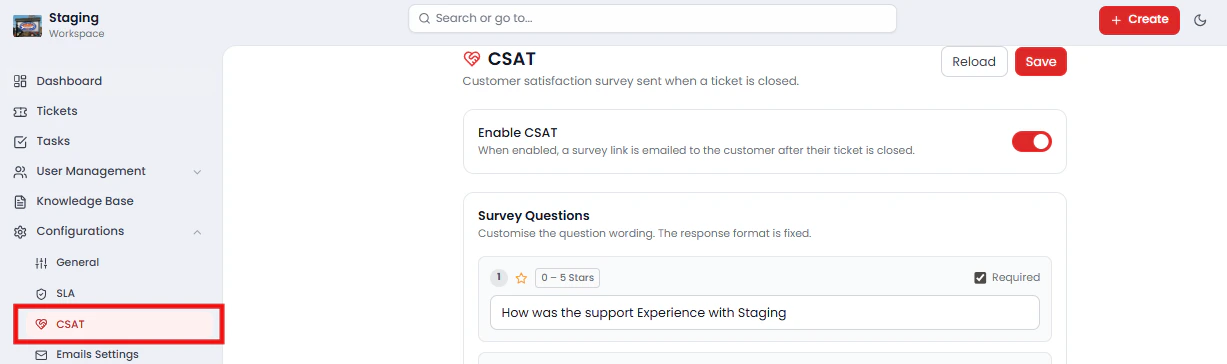 From this page, you can enable CSAT surveys, customize survey questions, configure content and branding, and set survey link expiry.
## Enabling CSAT Surveys
To begin collecting customer feedback:
1. Navigate to **Configuration → CSAT**
2. Toggle **Enable CSAT** to **ON**
From this page, you can enable CSAT surveys, customize survey questions, configure content and branding, and set survey link expiry.
## Enabling CSAT Surveys
To begin collecting customer feedback:
1. Navigate to **Configuration → CSAT**
2. Toggle **Enable CSAT** to **ON**
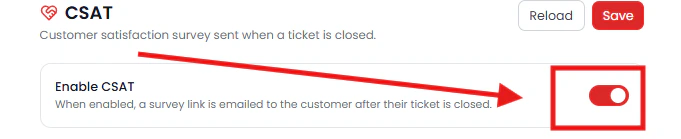 > 💡 Once enabled, SafariDesk will automatically send a survey link to the customer's email address each time a ticket is closed. Feedback is collected while the experience is still fresh, improving response quality and accuracy.
***
## Survey Questions
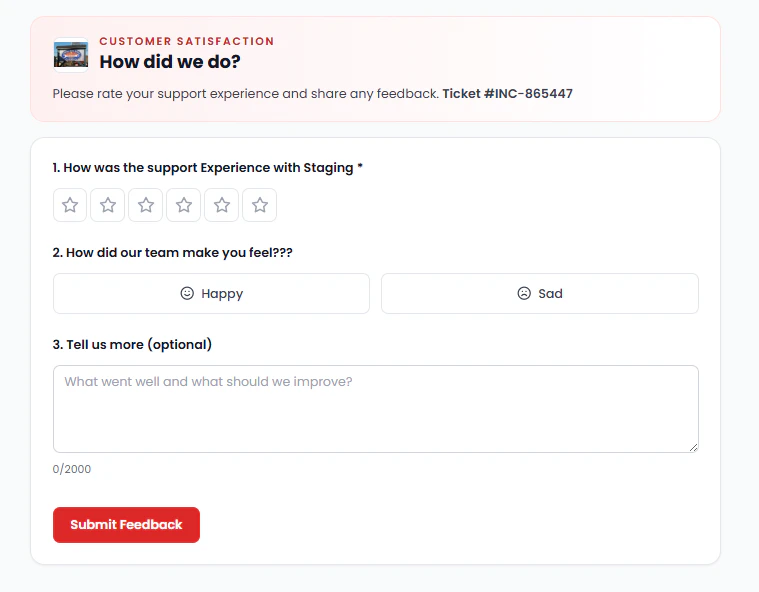
SafariDesk provides a set of default survey questions with fixed response formats to ensure consistency across all feedback and reporting. You can customize the wording of each question to match your brand voice or support focus.
| # | Format | Required | Default Question |
| - | ----------- | -------- | ----------------------------------------------------------- |
| 1 | 0 – 5 Stars | Yes | How was the support experience with \[Your Workspace Name]? |
| 2 | Happy / Sad | Yes | How did our team make you feel? |
| 3 | Text | Optional | Tell us more (optional) |
> ⚡ Response formats are fixed for reporting consistency, but question text is fully editable. Adjust wording to reflect your brand tone or highlight specific areas of your support process.
> 💡 Once enabled, SafariDesk will automatically send a survey link to the customer's email address each time a ticket is closed. Feedback is collected while the experience is still fresh, improving response quality and accuracy.
***
## Survey Questions
SafariDesk provides a set of default survey questions with fixed response formats to ensure consistency across all feedback and reporting. You can customize the wording of each question to match your brand voice or support focus.
| # | Format | Required | Default Question |
| - | ----------- | -------- | ----------------------------------------------------------- |
| 1 | 0 – 5 Stars | Yes | How was the support experience with \[Your Workspace Name]? |
| 2 | Happy / Sad | Yes | How did our team make you feel? |
| 3 | Text | Optional | Tell us more (optional) |
> ⚡ Response formats are fixed for reporting consistency, but question text is fully editable. Adjust wording to reflect your brand tone or highlight specific areas of your support process.
 ## Survey Content Configuration
Beyond individual questions, SafariDesk allows you to customize the overall presentation of your survey to make it engaging and on-brand.
## Survey Content Configuration
Beyond individual questions, SafariDesk allows you to customize the overall presentation of your survey to make it engaging and on-brand.
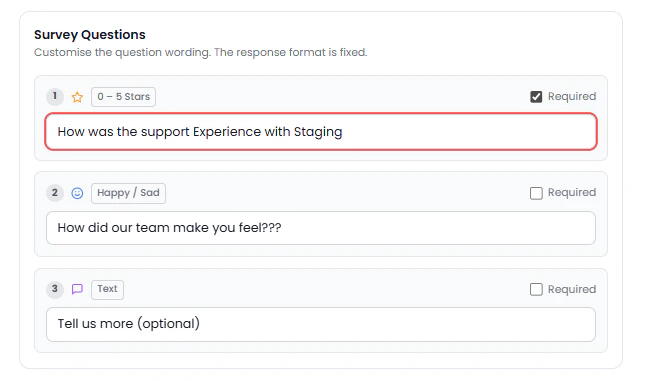 The following fields are configurable:
* **Survey Title** – The headline displayed at the top of the survey\
*Example: "How did we do?"*
* **Intro Text** – A short message shown before the survey questions\
*Example: "Please rate your support experience and share any feedback."*
* **Thank-you Title** – Shown after the customer submits their response\
*Example: "Thank you for your feedback"*
* **Thank-you Message** – A closing note displayed on the confirmation screen\
*Example: "We appreciate your time and value your feedback."*
* **Survey Link Expiry** – The number of hours the survey link remains active\
*Default: 336 hours (14 days)*
> 💡 **Best Practice:** Set the survey link expiry long enough to give customers a reasonable window to respond, but short enough that the feedback remains relevant to their experience. The default 14-day window works well for most teams.
## How CSAT Works
Once enabled, the CSAT process runs automatically with no additional action required from your agents:
1. An agent **closes a ticket** in SafariDesk
2. SafariDesk **automatically sends a survey link** to the customer's email address
3. The customer **completes the survey** using the configured questions and formats
4. **Responses are recorded** and aggregated within SafariDesk for review and reporting
> 📊 CSAT scores feed directly into your reporting dashboard, allowing you to track team performance, identify trends over time, and measure the impact of process improvements.
## Best Practices
To get the most value from your CSAT data:
* **Keep surveys concise** – Shorter surveys drive higher response rates. Stick to the core questions and avoid overloading customers
* **Use clear, direct language** – Make sure question wording is easy to understand at a glance
* **Review responses regularly** – Check CSAT results consistently to spot patterns before they become larger issues
* **Follow up on negative feedback** – Reach out to dissatisfied customers when appropriate to resolve lingering concerns and rebuild trust
* **Recognize top performers** – Use CSAT scores to highlight agents who consistently deliver excellent support
## Saving Changes
After configuring your survey questions, content, or expiry settings, click **Save Changes** to apply your configuration.
> ⚠️ Unsaved changes will not be applied.
## Summary
The CSAT module in SafariDesk gives your team a structured, automated way to collect and act on customer feedback after every ticket resolution. With it, you can:
* **Measure customer sentiment** in real time after each interaction
* **Customize survey questions and content** to align with your brand
* **Track response trends** to identify service gaps and performance highlights
* **Hold teams accountable** through transparent satisfaction reporting
Proper CSAT configuration ensures your support operation is always improving — driven by the real experiences of the customers you serve. If you have any questions or need assistance, contact our support team at\
[**support@safaridesk.com**](mailto:support@safaridesk.com)
We're always here to help you get the most out of SafariDesk.
The following fields are configurable:
* **Survey Title** – The headline displayed at the top of the survey\
*Example: "How did we do?"*
* **Intro Text** – A short message shown before the survey questions\
*Example: "Please rate your support experience and share any feedback."*
* **Thank-you Title** – Shown after the customer submits their response\
*Example: "Thank you for your feedback"*
* **Thank-you Message** – A closing note displayed on the confirmation screen\
*Example: "We appreciate your time and value your feedback."*
* **Survey Link Expiry** – The number of hours the survey link remains active\
*Default: 336 hours (14 days)*
> 💡 **Best Practice:** Set the survey link expiry long enough to give customers a reasonable window to respond, but short enough that the feedback remains relevant to their experience. The default 14-day window works well for most teams.
## How CSAT Works
Once enabled, the CSAT process runs automatically with no additional action required from your agents:
1. An agent **closes a ticket** in SafariDesk
2. SafariDesk **automatically sends a survey link** to the customer's email address
3. The customer **completes the survey** using the configured questions and formats
4. **Responses are recorded** and aggregated within SafariDesk for review and reporting
> 📊 CSAT scores feed directly into your reporting dashboard, allowing you to track team performance, identify trends over time, and measure the impact of process improvements.
## Best Practices
To get the most value from your CSAT data:
* **Keep surveys concise** – Shorter surveys drive higher response rates. Stick to the core questions and avoid overloading customers
* **Use clear, direct language** – Make sure question wording is easy to understand at a glance
* **Review responses regularly** – Check CSAT results consistently to spot patterns before they become larger issues
* **Follow up on negative feedback** – Reach out to dissatisfied customers when appropriate to resolve lingering concerns and rebuild trust
* **Recognize top performers** – Use CSAT scores to highlight agents who consistently deliver excellent support
## Saving Changes
After configuring your survey questions, content, or expiry settings, click **Save Changes** to apply your configuration.
> ⚠️ Unsaved changes will not be applied.
## Summary
The CSAT module in SafariDesk gives your team a structured, automated way to collect and act on customer feedback after every ticket resolution. With it, you can:
* **Measure customer sentiment** in real time after each interaction
* **Customize survey questions and content** to align with your brand
* **Track response trends** to identify service gaps and performance highlights
* **Hold teams accountable** through transparent satisfaction reporting
Proper CSAT configuration ensures your support operation is always improving — driven by the real experiences of the customers you serve. If you have any questions or need assistance, contact our support team at\
[**support@safaridesk.com**](mailto:support@safaridesk.com)
We're always here to help you get the most out of SafariDesk.