> ## Documentation Index
> Fetch the complete documentation index at: https://docs.safaridesk.io/llms.txt
> Use this file to discover all available pages before exploring further.
# Knowledge Base Management in SafariDesk
> Manage your SafariDesk knowledge base with ease. Learn how to create categories, write and publish articles, organize documentation, and optimize your help center for better self-service support.
## Knowledge Base Overview
The **Knowledge Base** in SafariDesk allows you to create, organize, and publish help articles for your customers and internal teams.
It serves as a centralized hub for documentation, including:
* Product guides
* Troubleshooting articles
* Billing and account information
* Updates and announcements
A well-structured knowledge base helps reduce support tickets, improve customer experience, and provide self-service support.
***
## Accessing the Knowledge Base
To manage your articles, navigate to the **Knowledge Base** section from your dashboard.
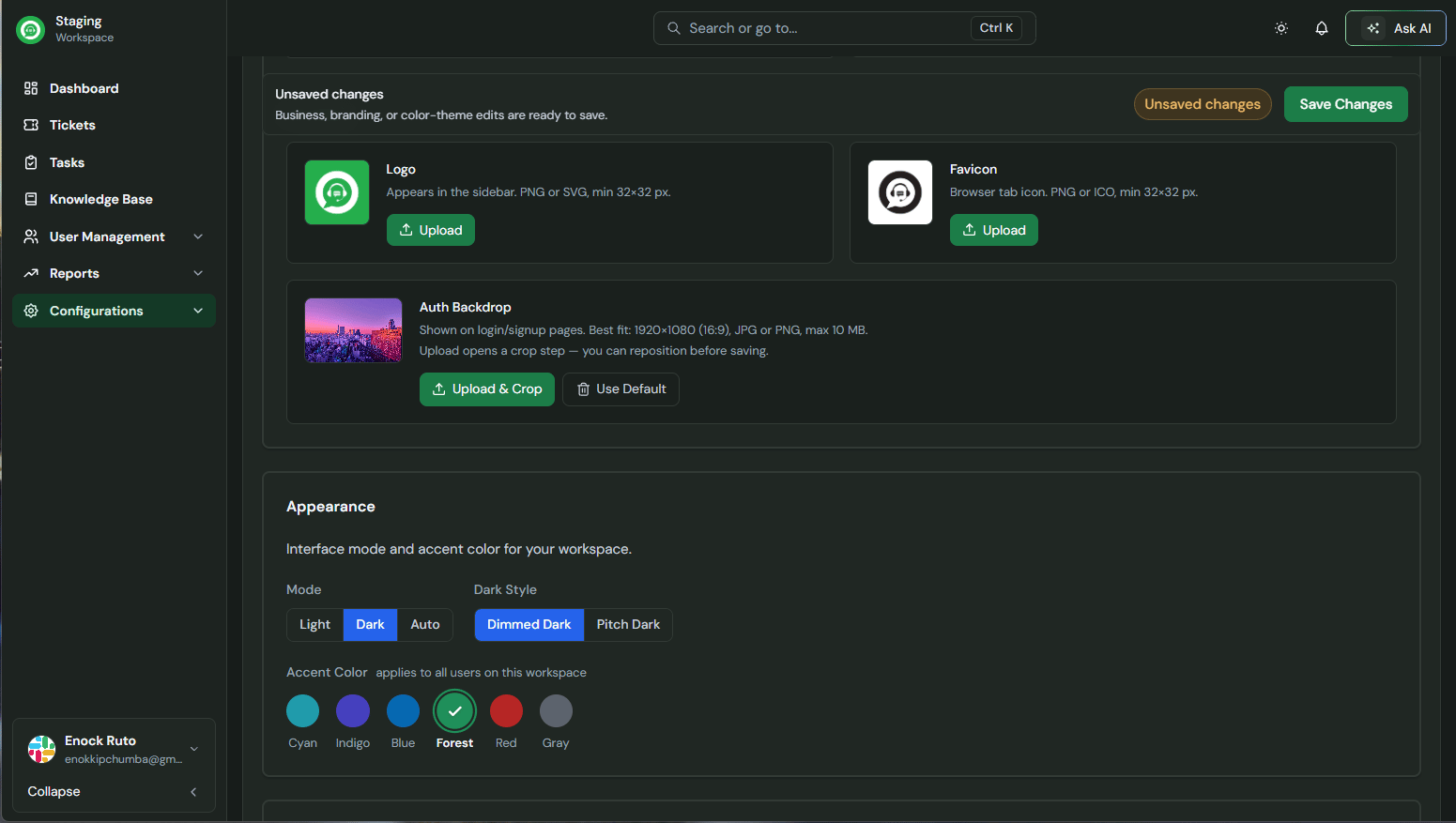 Here, you can:
* View all categories and articles
* Track article status (Draft, Published, Archived)
* See authors and last modified dates
## Understanding the Structure
SafariDesk organizes content into two levels:
### Categories
Categories group related articles together (e.g., *Billing & Payments*, *Product Guides*, *Updates & Announcements*).
### Articles
Articles are individual pieces of content created within a category.
> ⚠️ You must create a **category first** before adding articles.
## Creating a Category
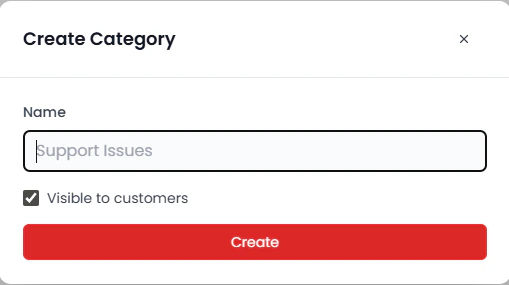
To create a new category:
1. Click the **Create** button
2. Select **Category**
3. Enter the category name
4. Click **Create**
Once created, the category will appear in your Knowledge Base and will be ready to hold articles.
Here, you can:
* View all categories and articles
* Track article status (Draft, Published, Archived)
* See authors and last modified dates
## Understanding the Structure
SafariDesk organizes content into two levels:
### Categories
Categories group related articles together (e.g., *Billing & Payments*, *Product Guides*, *Updates & Announcements*).
### Articles
Articles are individual pieces of content created within a category.
> ⚠️ You must create a **category first** before adding articles.
## Creating a Category
To create a new category:
1. Click the **Create** button
2. Select **Category**
3. Enter the category name
4. Click **Create**
Once created, the category will appear in your Knowledge Base and will be ready to hold articles.
 ## Creating an Article
After creating a category, you can add articles to it.
1. Click the **Create** button
2. Select **Article**
3. Enter the **article title**
4. Choose a **category** from the dropdown at the top
5. Click **Create**
The article will now be added to the selected category.
## Drafts and Publishing
When an article is first created, it is saved as a **Draft**.
To make it visible to users:
1. Open the article
2. Review and edit the content
3. Click the **Publish** button
## Creating an Article
After creating a category, you can add articles to it.
1. Click the **Create** button
2. Select **Article**
3. Enter the **article title**
4. Choose a **category** from the dropdown at the top
5. Click **Create**
The article will now be added to the selected category.
## Drafts and Publishing
When an article is first created, it is saved as a **Draft**.
To make it visible to users:
1. Open the article
2. Review and edit the content
3. Click the **Publish** button
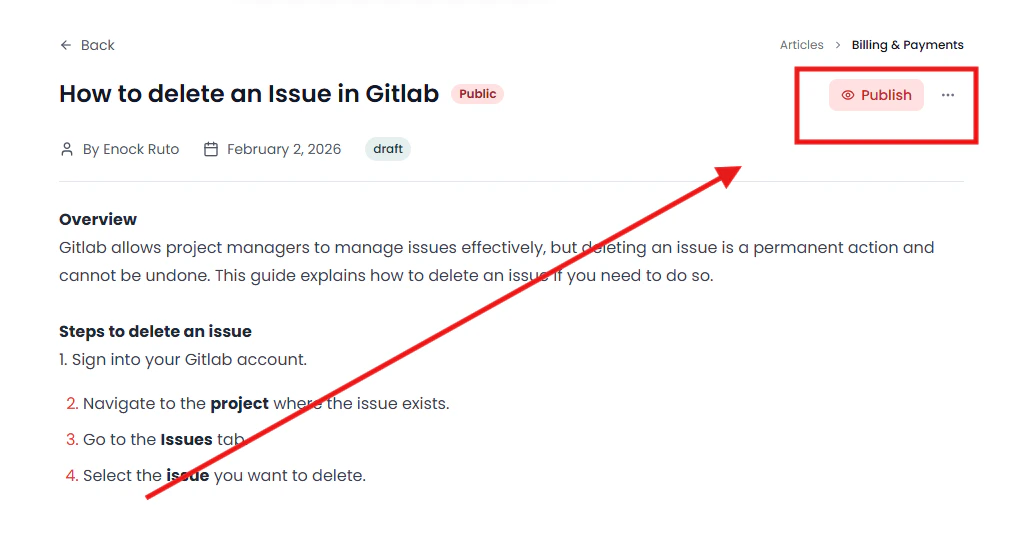 Once published, the article becomes accessible in your Knowledge Base.
## Managing Articles
Each article includes the following details:
* **Title** – Name of the article
* **Status** – Draft, Published, or Archived
* **Author** – Creator of the article
* **Last Modified** – Most recent update
You can update, archive, or republish articles at any time.
## Best Practices for Knowledge Base Management
To keep your Knowledge Base effective and easy to navigate:
* Organize content into clear, logical categories
* Use descriptive, keyword-rich titles
* Keep articles concise and actionable
* Regularly update outdated content
* Archive articles that are no longer relevant
## Why a Knowledge Base Matters
A well-maintained Knowledge Base helps you:
* Reduce repetitive support requests
* Empower users with self-service resources
* Improve customer satisfaction
* Scale your support operations efficiently
## Need Help?
If you have any questions or need assistance, contact our support team at\
[**support@safaridesk.com**](mailto:support@safaridesk.com)
We’re always here to help you get the most out of SafariDesk.
Once published, the article becomes accessible in your Knowledge Base.
## Managing Articles
Each article includes the following details:
* **Title** – Name of the article
* **Status** – Draft, Published, or Archived
* **Author** – Creator of the article
* **Last Modified** – Most recent update
You can update, archive, or republish articles at any time.
## Best Practices for Knowledge Base Management
To keep your Knowledge Base effective and easy to navigate:
* Organize content into clear, logical categories
* Use descriptive, keyword-rich titles
* Keep articles concise and actionable
* Regularly update outdated content
* Archive articles that are no longer relevant
## Why a Knowledge Base Matters
A well-maintained Knowledge Base helps you:
* Reduce repetitive support requests
* Empower users with self-service resources
* Improve customer satisfaction
* Scale your support operations efficiently
## Need Help?
If you have any questions or need assistance, contact our support team at\
[**support@safaridesk.com**](mailto:support@safaridesk.com)
We’re always here to help you get the most out of SafariDesk.