> ## Documentation Index
> Fetch the complete documentation index at: https://docs.safaridesk.io/llms.txt
> Use this file to discover all available pages before exploring further.
# Managing Tasks in SafariDesk: Organize, Track & Complete Internal Work
> Learn how to manage tasks in SafariDesk. This guide covers creating tasks from tickets or manually, viewing tasks in list format, linking tasks to tickets, restoring deleted tasks, configuring task ID formats, and managing task workflows. Improve internal collaboration and track team productivity efficiently.
## Tasks Overview
Tasks are an essential part of **SafariDesk**, designed to help teams organize, track, and complete work efficiently. While tickets handle customer requests, **tasks focus on internal work management**.
Tasks can be:
* **Linked to a ticket** (for follow-ups or internal actions)
* **Created as standalone items** (for general team tasks)
This flexibility allows teams to manage both customer-related and internal workflows in one place.
## Creating Tasks
There are multiple ways to create tasks in SafariDesk:
* **From Tickets**: Create a task directly from a ticket to track internal work related to that issue
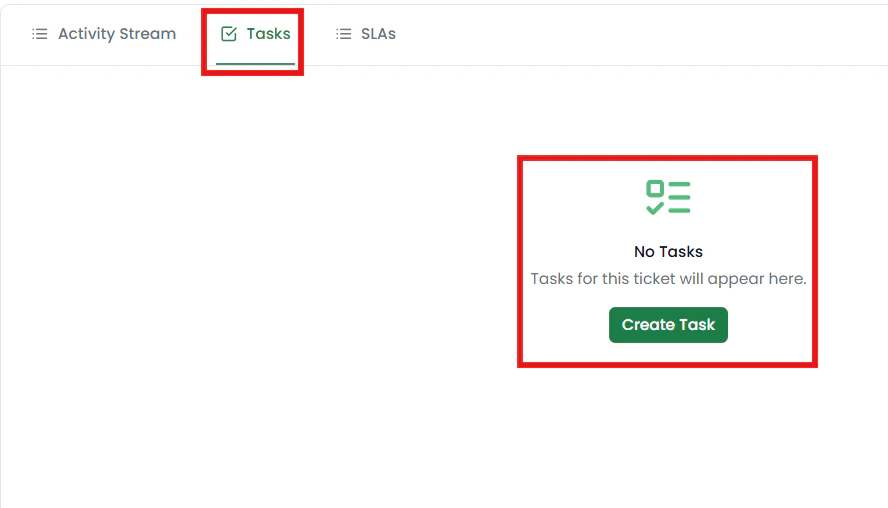 * **Manual Creation**: Use the **Create Task** button from the Tasks page
## Task Views
SafariDesk provides a structured way to view and manage tasks. The **default view is List View**.
### List View
Displays tasks in a structured table with the following columns:
* Task ID
* Title
* Labels
* Status
* Priority
* Department
* Assignee
* Due Date
You can also filter tasks by:
* **Open**
* **Closed**
## Task Actions
At the top of the Tasks page, you’ll find quick action options:
* **All Tasks** — View all tasks
* **Create Task** — Add a new task
* **Search Tasks** — Quickly find tasks using keywords
* **Trash** — View deleted tasks
* **Settings** — Configure task preferences
## Task Workflow
Tasks follow a simple and effective workflow similar to tickets:
* **To Do** — Task is created and pending
* **In Progress** *(optional if you add later)* — Task is actively being worked on
* **Completed / Closed** — Task has been finished
This ensures clear visibility into progress and accountability.
## Linking Tasks to Tickets
Tasks can be linked to tickets to break down work into actionable steps.
**Example use cases:**
* Assigning internal investigation work for a support issue
* Tracking engineering fixes related to a ticket
* Managing follow-ups after customer communication
This helps teams collaborate without cluttering the main ticket conversation.
## Trash
Deleted tasks are not permanently removed.
You can restore them anytime by navigating to the **Trash**, where all deleted tasks are stored.
## Task Settings
You can customize how tasks behave under **Settings**.
### Task ID Format
Define how Task IDs are generated.
Example: `T-2025-0001`
| Token | Description |
| :------- | :------------------------- |
| `{YYYY}` | The current year |
| `{####}` | The next sequential number |
> 💡 You can customize the prefix (e.g., `Tk`, `TSK`, `WRK`) to match your workflow or department.
## Key Benefits of Tasks
* Organize internal work separate from customer communication
* Break down tickets into actionable steps
* Assign clear ownership and deadlines
* Track progress across teams
* **Manual Creation**: Use the **Create Task** button from the Tasks page
## Task Views
SafariDesk provides a structured way to view and manage tasks. The **default view is List View**.
### List View
Displays tasks in a structured table with the following columns:
* Task ID
* Title
* Labels
* Status
* Priority
* Department
* Assignee
* Due Date
You can also filter tasks by:
* **Open**
* **Closed**
## Task Actions
At the top of the Tasks page, you’ll find quick action options:
* **All Tasks** — View all tasks
* **Create Task** — Add a new task
* **Search Tasks** — Quickly find tasks using keywords
* **Trash** — View deleted tasks
* **Settings** — Configure task preferences
## Task Workflow
Tasks follow a simple and effective workflow similar to tickets:
* **To Do** — Task is created and pending
* **In Progress** *(optional if you add later)* — Task is actively being worked on
* **Completed / Closed** — Task has been finished
This ensures clear visibility into progress and accountability.
## Linking Tasks to Tickets
Tasks can be linked to tickets to break down work into actionable steps.
**Example use cases:**
* Assigning internal investigation work for a support issue
* Tracking engineering fixes related to a ticket
* Managing follow-ups after customer communication
This helps teams collaborate without cluttering the main ticket conversation.
## Trash
Deleted tasks are not permanently removed.
You can restore them anytime by navigating to the **Trash**, where all deleted tasks are stored.
## Task Settings
You can customize how tasks behave under **Settings**.
### Task ID Format
Define how Task IDs are generated.
Example: `T-2025-0001`
| Token | Description |
| :------- | :------------------------- |
| `{YYYY}` | The current year |
| `{####}` | The next sequential number |
> 💡 You can customize the prefix (e.g., `Tk`, `TSK`, `WRK`) to match your workflow or department.
## Key Benefits of Tasks
* Organize internal work separate from customer communication
* Break down tickets into actionable steps
* Assign clear ownership and deadlines
* Track progress across teams