> ## Documentation Index
> Fetch the complete documentation index at: https://docs.safaridesk.io/llms.txt
> Use this file to discover all available pages before exploring further.
# Managing Tickets in SafariDesk: Create, Track & Resolve Support Requests
> Learn how to manage tickets in SafariDesk. This guide covers creating tickets via email, web, or customer portal, viewing tickets in list, card, or detailed layouts, using quick actions, recovering deleted tickets, and configuring ticket ID formats. Ensure your team handles customer requests efficiently and keeps support organized.
## Tickets Overview
Tickets are the **backbone of SafariDesk**. Every support request, issue, or inquiry from your customers lives here , making it the most important part of the system.
### Creating Tickets
There are multiple ways tickets can be created in SafariDesk:
* **Email to Ticket** :Configure your support email so that any email sent to it automatically becomes a ticket
* **Web** : Agents can manually create tickets directly from within SafariDesk
* **Customer Portal** : Customers can submit tickets through your[ self-service porta](/Customer-portal)l
### Ticket Views
SafariDesk gives you three ways to view your tickets. The **default view is List View**.
### List View
Displays tickets in a structured table with the following columns:
* Ticket ID
* Issue / Subject
* Status
* Priority
* Department
* Author
* Assignee
* Due Date
You can also filter tickets by **Open** or **Closed** status.
 ### Card View
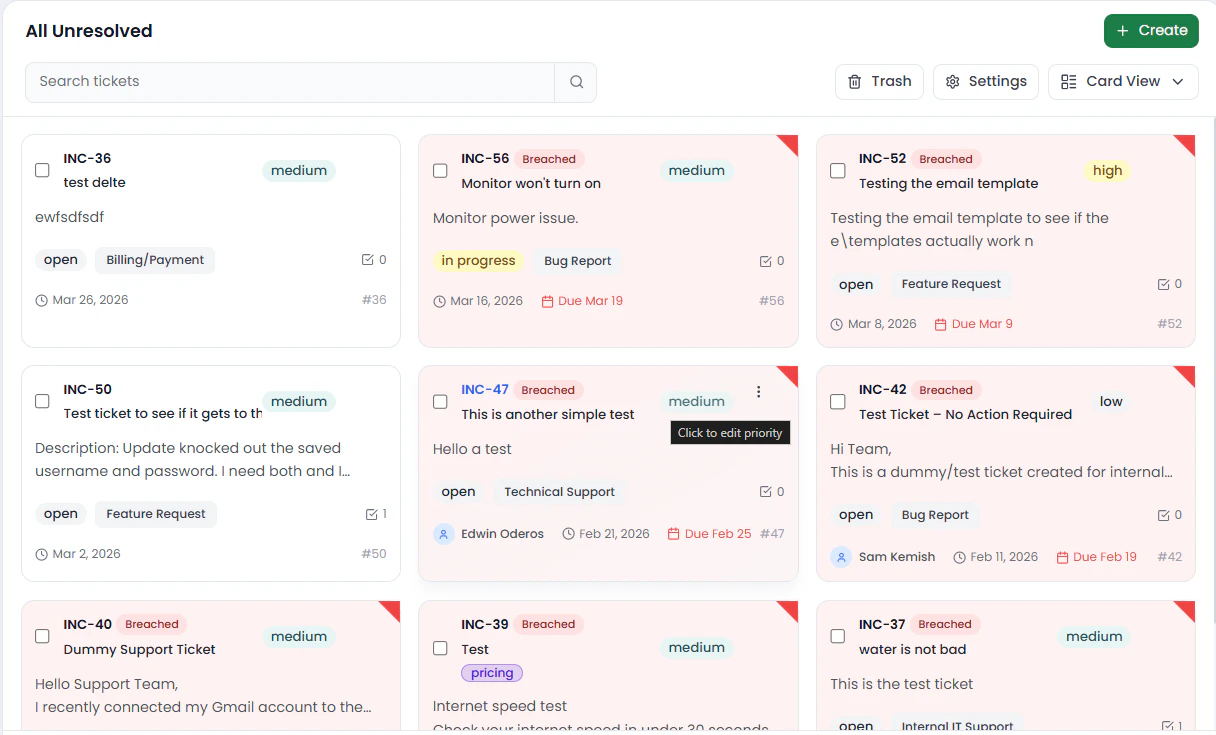
Displays tickets as cards for a more visual layout.
### Card View
Displays tickets as cards for a more visual layout.
 ## Ticket Actions
At the top of the Tickets page you'll find quick action buttons:
* **All Unresolved** — Filter to show only unresolved tickets
* **Create** — Manually create a new ticket
* **Trash** — View deleted tickets
* **Settings** — Configure ticket settings
## Trash
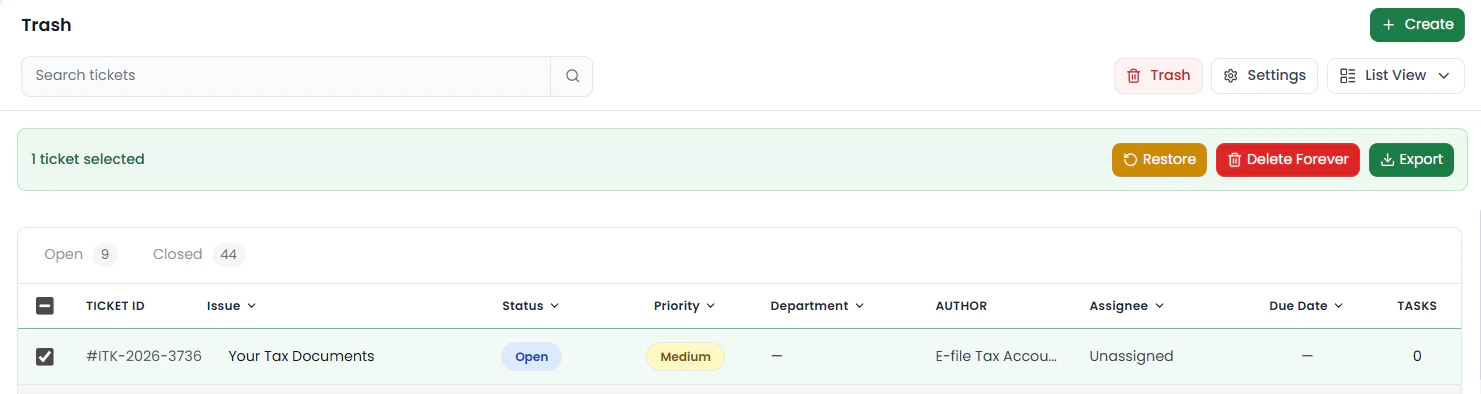
If a ticket is accidentally deleted, don't worry , it isn't gone permanently. You can recover it by navigating to the **Trash**, where deleted tickets are stored, and restoring them.
## Ticket Actions
At the top of the Tickets page you'll find quick action buttons:
* **All Unresolved** — Filter to show only unresolved tickets
* **Create** — Manually create a new ticket
* **Trash** — View deleted tickets
* **Settings** — Configure ticket settings
## Trash
If a ticket is accidentally deleted, don't worry , it isn't gone permanently. You can recover it by navigating to the **Trash**, where deleted tickets are stored, and restoring them.
 ## Ticket Settings
You can customize how tickets are formatted under **Settings**.
### Ticket ID Format
Define how ticket IDs are generated. For example: `INC-25-0001`
| Token | Description |
| :------- | :----------------------------- |
| `{YYYY}` | **The current year** |
| `{####}` | **The next sequential number** |
> 💡 You can change the letters at the start (e.g. `INC`, `ITK`, `HLP`) to match your brand or department.
## Ticket Settings
You can customize how tickets are formatted under **Settings**.
### Ticket ID Format
Define how ticket IDs are generated. For example: `INC-25-0001`
| Token | Description |
| :------- | :----------------------------- |
| `{YYYY}` | **The current year** |
| `{####}` | **The next sequential number** |
> 💡 You can change the letters at the start (e.g. `INC`, `ITK`, `HLP`) to match your brand or department.