

Email Integration Overview
The Email Settings module in SafariDesk is your central hub for connecting, configuring, and managing all email communication between your support team and your customers. From this page you can connect mailboxes via Gmail, Microsoft, Custom IMAP, or a SafariDesk forwarding alias — and control everything from department routing and default assignees to outgoing signatures, notification templates, and inbox filters. Proper email configuration ensures that every inbound customer message is captured, correctly routed, and responded to from the right address with the right signature and the right template.Accessing Email Settings
Navigate to: Configuration → Email Settings The Email Settings page is organized into four tabs:- Mailboxes — Connect and manage email inboxes
- Settings — Configure email fetching, template sets, and signatures
- Templates — Edit outgoing notification email templates
- Filters — Define rules to block or ignore specific senders
Mailboxes Tab
Connecting a New Mailbox
To connect a new mailbox, click + Connect New Mailbox at the top of the Mailboxes tab( whether Gmail, Outlook or your Custom mail . SafariDesk supports four connection methods: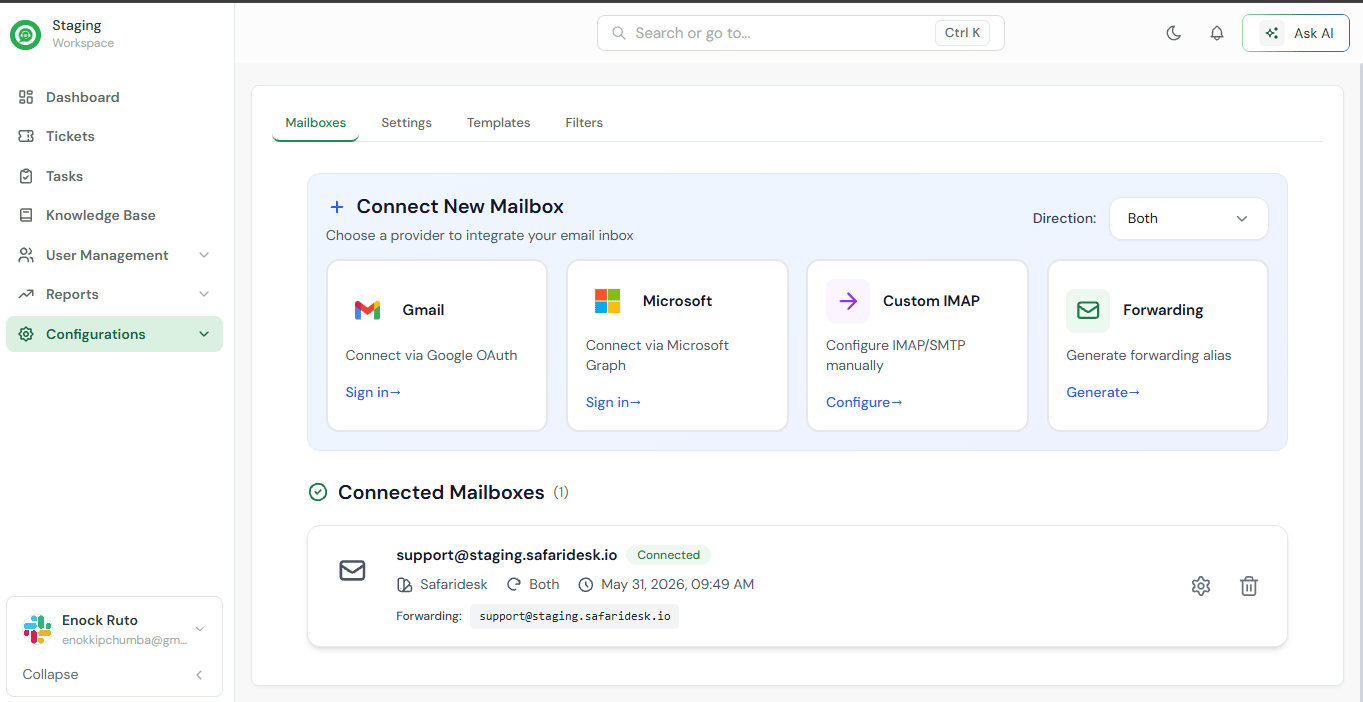
- Incoming Only — SafariDesk receives emails but does not send from this address
- Outgoing Only — SafariDesk sends emails from this address but does not receive
- Both — Full two-way email communication (recommended for most mailboxes)
Gmail
Connects your Google Workspace or Gmail account using Google OAuth.- Click Sign in → under Gmail
- Authenticate with your Google account
- Grant SafariDesk the required permissions
💡 OAuth authentication means SafariDesk never stores your Google password. Access is managed securely through Google’s authorization framework.
Microsoft
Connects your Microsoft 365 or Outlook account using Microsoft Graph.- Click Sign in → under Microsoft
- Authenticate with your Microsoft account
- Grant the required permissions
💡 Microsoft Graph integration supports both Exchange Online and Microsoft 365 mailboxes.
Custom IMAP
For any email provider not covered by OAuth — including custom business email servers — you can configure a connection manually using IMAP for incoming mail and SMTP for outgoing mail.- Click Configure → under Custom IMAP
- Enter your IMAP server details (host, port, encryption)
- Enter your SMTP server details (host, port, encryption)
- Provide your email credentials
- Save and test the connection
⚠️ Ensure your email provider allows third-party IMAP/SMTP access before configuring. Some providers require this to be explicitly enabled in their settings.
Forwarding Alias
SafariDesk can generate a unique forwarding alias — a SafariDesk-hosted email address that ingests messages forwarded from your existing mailbox. This is the simplest connection method and requires no IMAP or SMTP configuration.- Click Generate → under Forwarding
- SafariDesk generates a unique alias using your workspace subdomain (e.g. [email protected])
- Set up a forwarding rule in your existing email provider to forward incoming messages to this alias
💡 This method is ideal when you want to keep your existing email address visible to customers while routing all incoming messages into SafariDesk. IMAP/SMTP settings are not needed for SafariDesk-hosted aliases.
Connected Mailboxes
All connected mailboxes are listed beneath the connection options, showing:- Email address and connection status
- Workspace name
- Direction (Both / Incoming Only / Outgoing Only)
- Connection date
- Forwarding alias (if applicable)
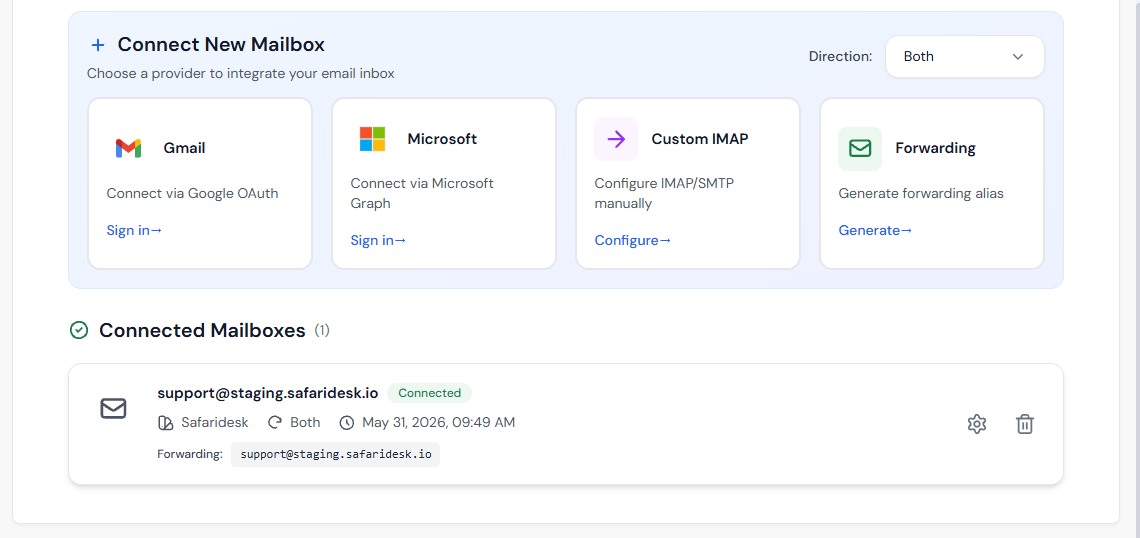
- Settings (⚙) — Opens the individual mailbox configuration panel
- Delete (🗑) — Removes the mailbox from SafariDesk
Individual Mailbox Settings
Click the Settings icon (⚙) next to any connected mailbox to open its configuration panel. From here you can fine-tune how SafariDesk handles that specific inbox.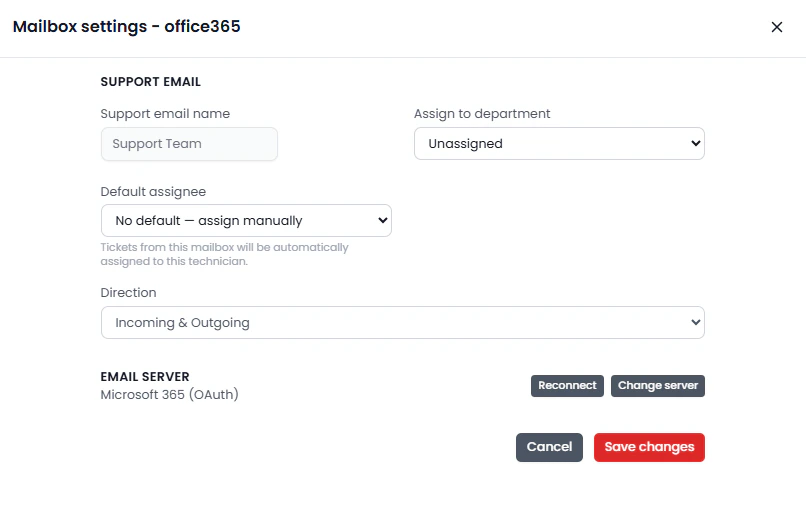
Support Email
The email address associated with this mailbox. This is the address customers see when they receive replies from this inbox.Support Email Name
The display name shown alongside the support email address in outgoing messages — for example, “SafariDesk Support” or your company name.Assign to Department
Route all tickets received through this mailbox to a specific department automatically. Available options reflect your configured departments:- Unassigned
- Marketing / Sales
- IT / Technology
- Human Resources (HR)
- Any other active department in your workspace
💡 Assigning a mailbox to a department is one of the most effective ways to ensure tickets are routed to the right team without any manual intervention.
Default Assignee
Automatically assign all incoming tickets from this mailbox to a specific agent. Select from the list of agents in your workspace, or leave it as No default to allow manual assignment.⚠️ If both a department and a default assignee are set, the ticket will be routed to the department and assigned to the specified agent within it.
Direction
Override the mailbox direction at the individual mailbox level:- Incoming Only
- Outgoing Only
- Incoming & Outgoing
Email Server
Displays the current server configuration for the mailbox. Use Change Server to update IMAP/SMTP credentials if your server details change.SafariDesk Forwarding Alias
For forwarding-based mailboxes, this section displays your unique alias and provides options to:- Copy the alias to your clipboard
- Regenerate the alias if needed
⚠️ If you regenerate your alias, you must update the forwarding rule in your external email provider to point to the new address. The old alias will stop receiving messages immediately.
Settings Tab
The Settings tab controls global email behavior across all connected mailboxes.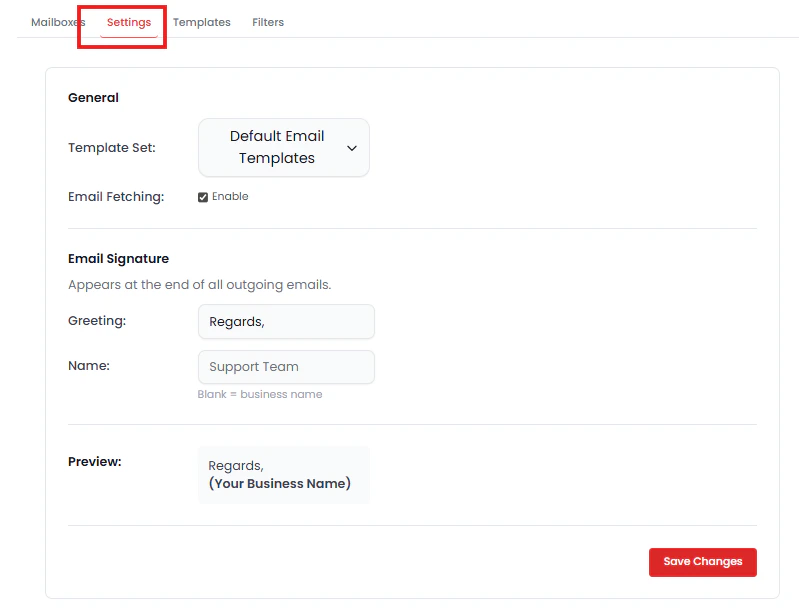
General
Template Set
Select which set of email templates SafariDesk uses for outgoing notifications. The default is Default Email Templates, but custom template categories can be created in the Templates tab and assigned here.Email Fetching
Enable or disable email fetching globally across all connected mailboxes. When enabled, SafariDesk actively polls connected inboxes for new messages and converts them into tickets.⚠️ Disabling Email Fetching will stop SafariDesk from ingesting new emails across all mailboxes. Only disable this if you are performing maintenance or troubleshooting.
Email Signature
Configure the signature that appears at the bottom of all outgoing emails sent from SafariDesk.- Greeting — The closing salutation. Example: “Regards,”
- Name — The name displayed below the greeting. Leave blank to use your Business Name from General Settings automatically
💡 Keep your signature concise and professional. Avoid including images or complex formatting, as these can render inconsistently across email clients.
Templates Tab
The Templates tab allows you to view, organize, and edit all outgoing email notification templates used by SafariDesk.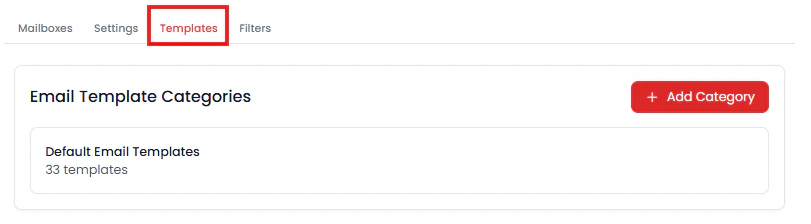
Template Categories
Templates are grouped into categories. The default category is Default Email Templates, which contains 33 pre-built templates. Additional categories can be created using + Add Category and assigned to specific mailboxes via the Settings tab.Template Types
Templates are organized by the type of event that triggers them:Ticket Templates
Additional template groups include Task Templates, SLA Templates, and Comment Templates.
Template Variables
Every template supports dynamic variables that are automatically populated with real data when the email is sent. Variables are written in double curly brace syntax:{{variable_name}}
Ticket variables: {{title}}, {{description}}, {{category_name}}, {{department_name}}, {{creator_name}}, {{creator_email}}, {{ticket_id}}, {{status}}, {{priority}}, {{sla_name}}, {{assigned_to_name}}, {{due_date}}, {{url}}, and more.
SLA variables: {{name}}, {{priority}}, {{first_response_time}}, {{resolution_time}}, {{first_response_due}}, {{resolution_due}}
Task variables: {{title}}, {{priority}}, {{department_name}}, {{task_status}}, {{assigned_to_name}}, {{due_date}}, {{url}}, and more.
User / Customer variables: {{email}}, {{full_name}}, {{phone_number}}
Comment variables: {{ticket_id}}, {{ticket_title}}, {{comment_content}}, {{comment_author_name}}, {{reply_content}}, and more.
💡 Always use variables from the supported list for the template type you are editing. Using unsupported variables in a template will result in them rendering as blank in the sent email.
Filters Tab
The Filters tab allows you to define rules that block or ignore emails from specific senders, domains, or addresses before they are processed by SafariDesk.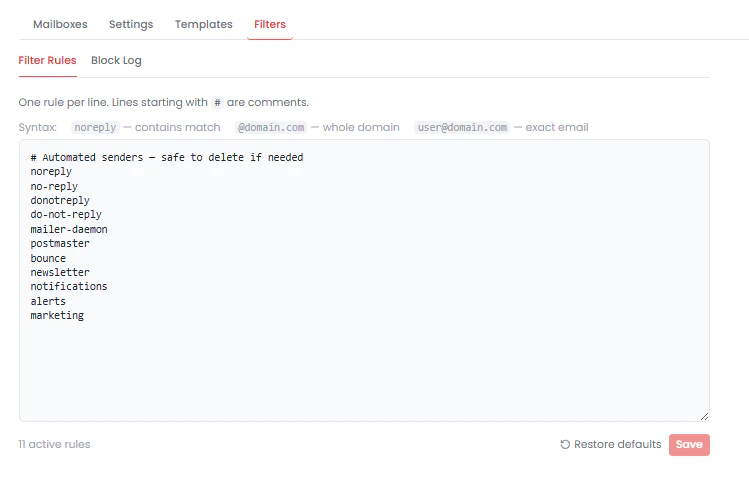
Filter Rules
Rules are entered one per line in the filter editor. Lines beginning with# are treated as comments and are ignored.
Supported syntax:
Block Log
The Block Log tab records all emails that have been blocked by your filter rules, giving you visibility into what is being filtered and confirming your rules are working as intended.Managing Filter Rules
- Click Save to apply your current rules
- Click Restore Defaults to revert to SafariDesk’s built-in default filter rules (11 active rules out of the box)
⚠️ Be careful when writing broad rules such as @gmail.com — these will block all email from that domain, including legitimate customer messages. Use domain-level blocks only for known spam or no-reply domains.
Saving Changes
After updating any email settings, signature, template, or filter rule, click Save Changes to apply your configuration.⚠️ Unsaved changes will not be applied.
Summary
The Email Settings module in SafariDesk gives you complete control over how your support team sends, receives, and processes email. With it, you can:- Connect any mailbox via Gmail OAuth, Microsoft Graph, Custom IMAP, or a forwarding alias
- Route tickets automatically by assigning mailboxes to departments and default agents
- Maintain a consistent brand voice through a configured outgoing email signature
- Customize every notification your customers and agents receive using editable templates and dynamic variables
- Protect inbox quality by filtering out no-reply addresses, spam domains, and unwanted senders
Need Help?
If you have any questions or need assistance, contact our support team at[email protected] We’re always here to help you get the most out of SafariDesk.