

General Settings Overview
The General Settings page in SafariDesk allows you to configure your workspace, manage branding, and customize system behavior from a single location. This section is essential for setting up your business identity, system URLs, support channels, and application appearance. Proper configuration ensures a consistent brand experience and smooth operation across your support environment.Accessing General Settings
Navigate to: Configuration → General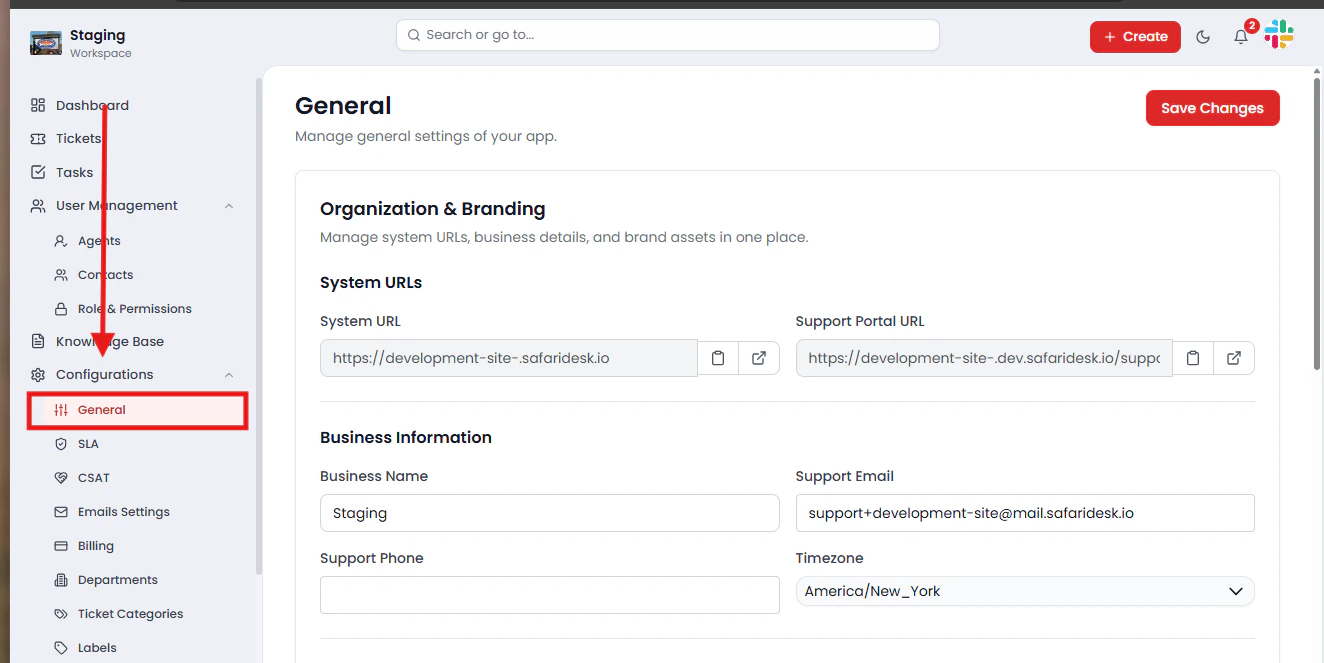
Organization & Branding
The Organization & Branding section allows you to define your business identity and system configuration.System URLs
These URLs define how your SafariDesk instance is accessed:- System URL
The main application URL used by your team - Support Portal URL
The Support Portal URL is the customer-facing link where your users can interact with your support system. This is the page your customers will use to:- Submit support tickets
- Access your Knowledge Base and help articles You can embed or link this URL directly on your website, for example, as a “Submit a Ticket” or “Help Center” button in your navigation, footer, or support page. This makes it easy for customers to reach your support system without needing direct assistance. For SafariDesk, a typical support portal might look like:
https://yourworkspace.safaridesk.io/support\
From this portal, customers can: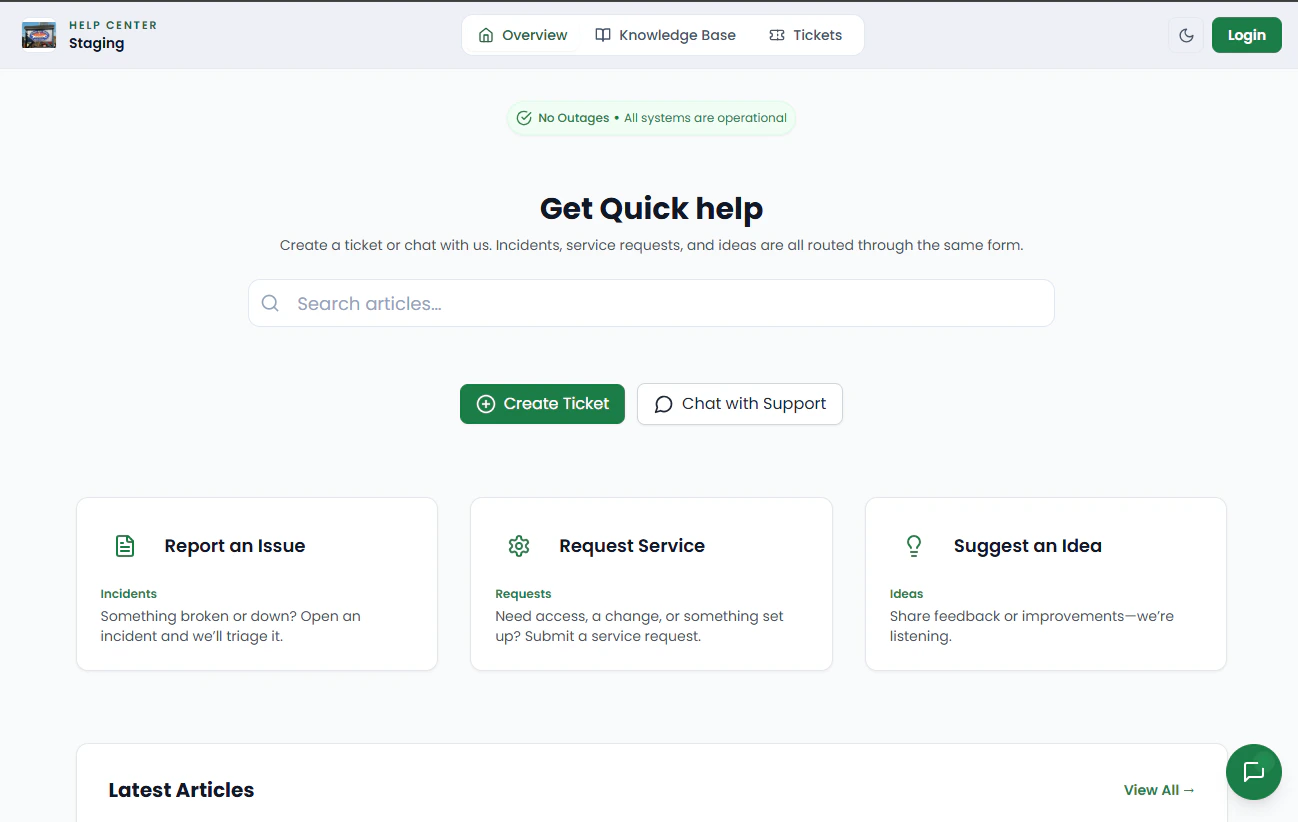
- Create new tickets
- Browse help documentation and self-service resources 💡 Best Practice:
Make sure your Support Portal URL is correctly configured and publicly accessible before going live. Adding it prominently to your website improves customer experience and reduces support friction by enabling self-service.
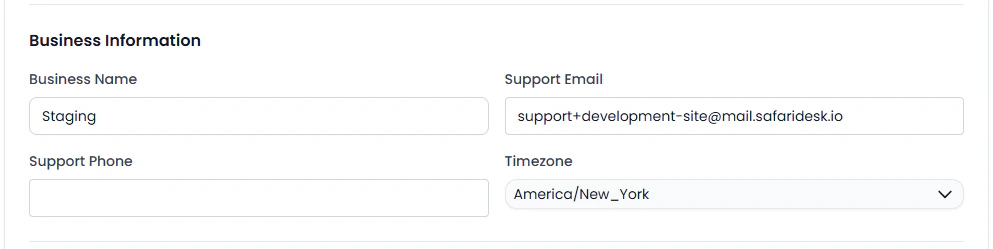
Business Information
This section stores your organization’s core details:- Business Name – Your company or workspace name
- Support Email – Primary email for customer communication
- Support Phone – Contact number for support (optional)
- Timezone – Sets the default timezone for tickets, logs, and reports
Branding
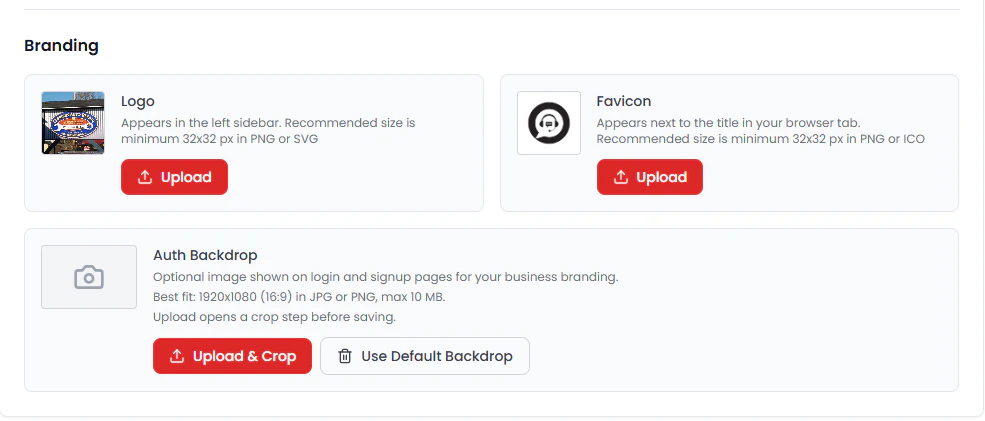
Customize the visual identity of your SafariDesk workspace to reflect your company’s brand and create a consistent experience across all customer touchpoints.Logo
Your logo represents your brand across the entire SafariDesk platform. It appears in:- The left sidebar within the agent dashboard
- The customer support portal
- The sign-in and authentication pages
- Minimum size: 32 × 32 px
- Formats: PNG or SVG (SVG is preferred for better scaling and clarity)Favicon
- Appears in the browser tab
- Recommended size: minimum 32×32 px
- Supported formats: PNG or ICO
Auth Backdrop
- Optional background image for login and signup pages
- Recommended size: 1920×1080 (16:9)
- Formats: JPG or PNG
- Maximum size: 10 MB
Appearance Settings
Customize how SafariDesk looks for your team.Mode
Choose your preferred interface display:- Light – Bright interface for daytime use\
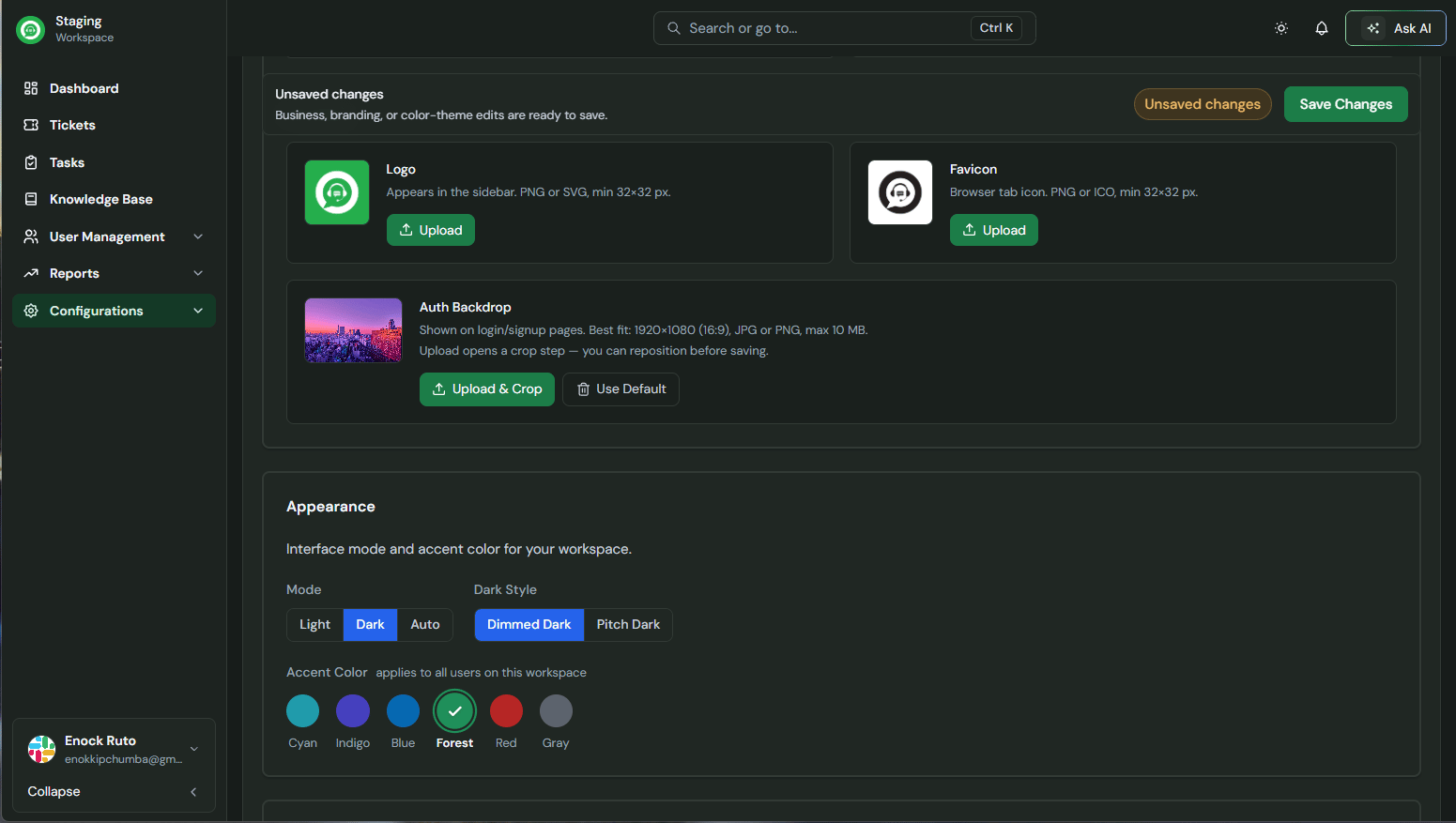
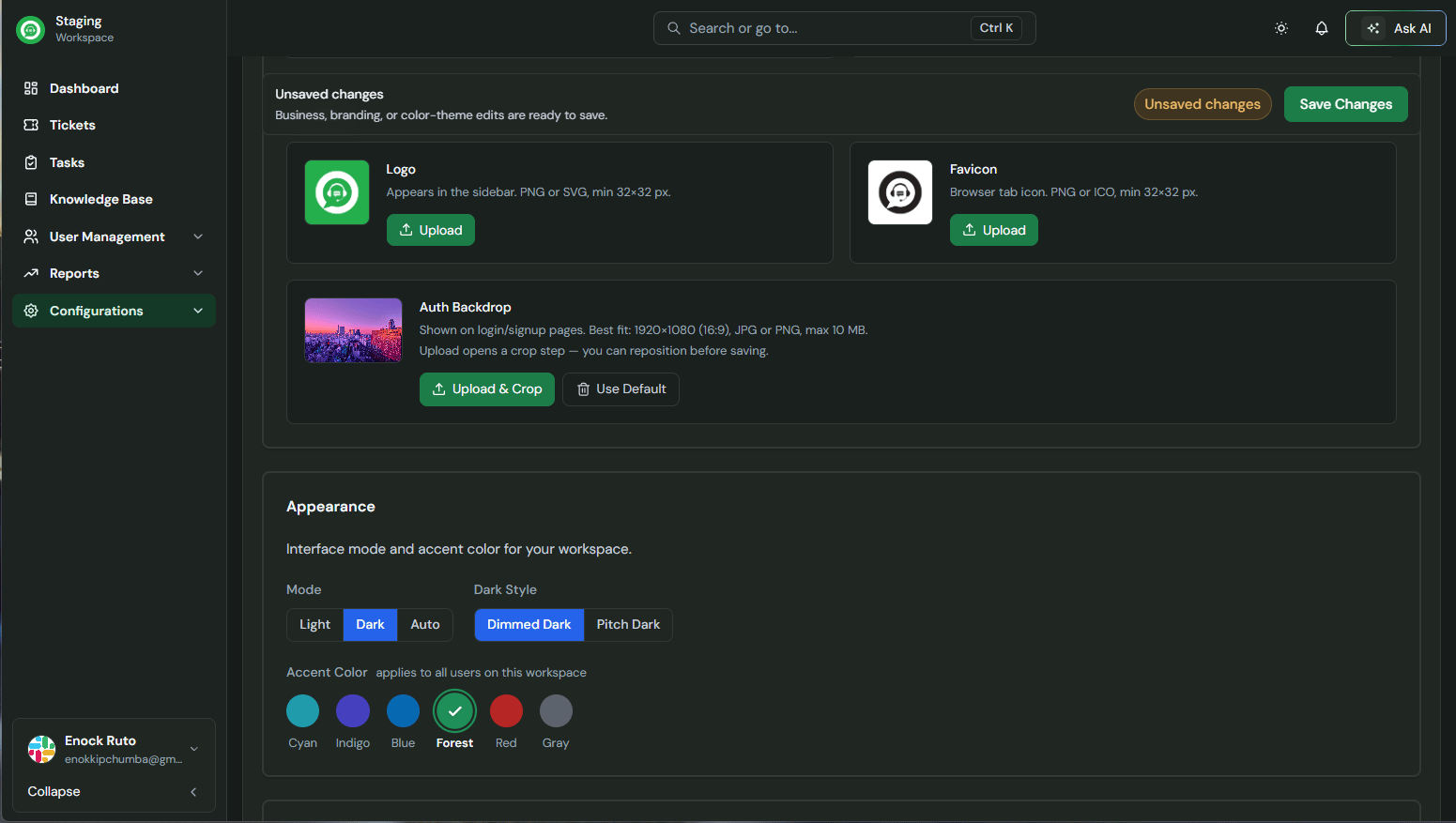
- Auto – Matches your device’s system settings
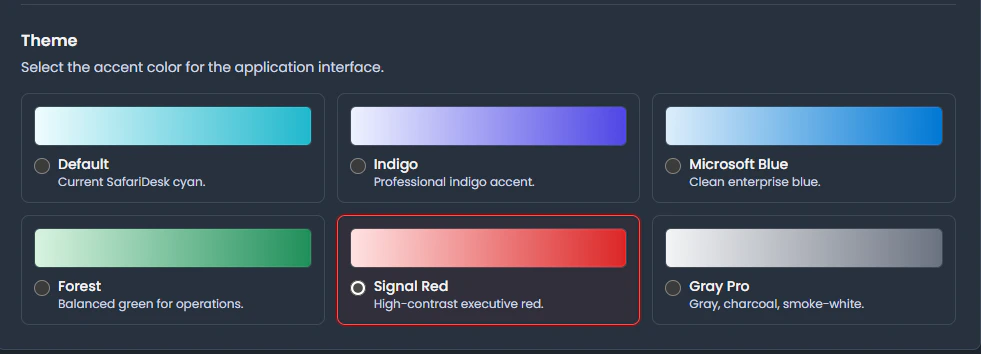
Theme
Select an accent color for your workspace:- Default – SafariDesk cyan
- Indigo – Professional indigo tone
- Microsoft Blue – Clean, enterprise-style blue
- Forest – Balanced green theme
- Signal Red – High-contrast red
- Gray Pro – Neutral grayscale palette
Saving Changes
After making updates, click Save Changes to apply your configuration.⚠️ Unsaved changes will not be applied.
Danger Zone
The Danger Zone contains critical actions that affect your entire workspace.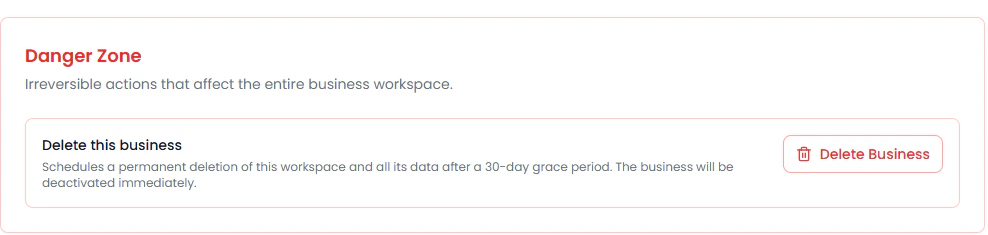
Delete Business
- Permanently deletes your workspace and all associated data
- Includes a 30-day grace period before full deletion
- The workspace is deactivated immediately after initiating deletion
⚠️ Warning: This action is irreversible after the grace period. Ensure you have backed up any important data before proceeding.
Need Help?
If you have any questions or need assistance, contact our support team at[email protected] We’re always here to help you get the most out of SafariDesk.