

Tickets Overview
Tickets are the backbone of SafariDesk. Every support request, issue, or inquiry from your customers lives here , making it the most important part of the system.Creating Tickets
There are multiple ways tickets can be created in SafariDesk:- Email to Ticket :Configure your support email so that any email sent to it automatically becomes a ticket
- Web : Agents can manually create tickets directly from within SafariDesk
- Customer Portal : Customers can submit tickets through your self-service portal
Ticket Views
SafariDesk gives you three ways to view your tickets. The default view is List View.List View
Displays tickets in a structured table with the following columns:- Ticket ID
- Issue / Subject
- Status
- Priority
- Department
- Author
- Assignee
- Due Date
Card View
Displays tickets as cards for a more visual layout.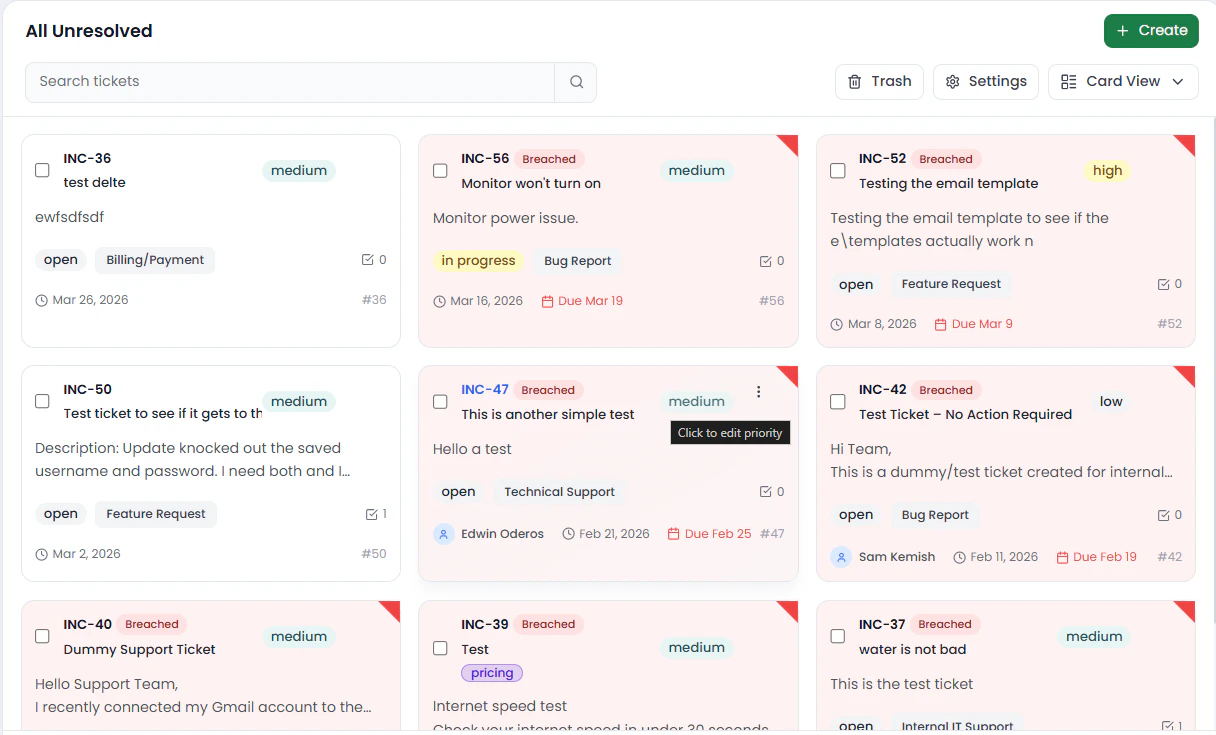
Ticket Actions
At the top of the Tickets page you’ll find quick action buttons:- All Unresolved — Filter to show only unresolved tickets
- Create — Manually create a new ticket
- Trash — View deleted tickets
- Settings — Configure ticket settings
Trash
If a ticket is accidentally deleted, don’t worry , it isn’t gone permanently. You can recover it by navigating to the Trash, where deleted tickets are stored, and restoring them.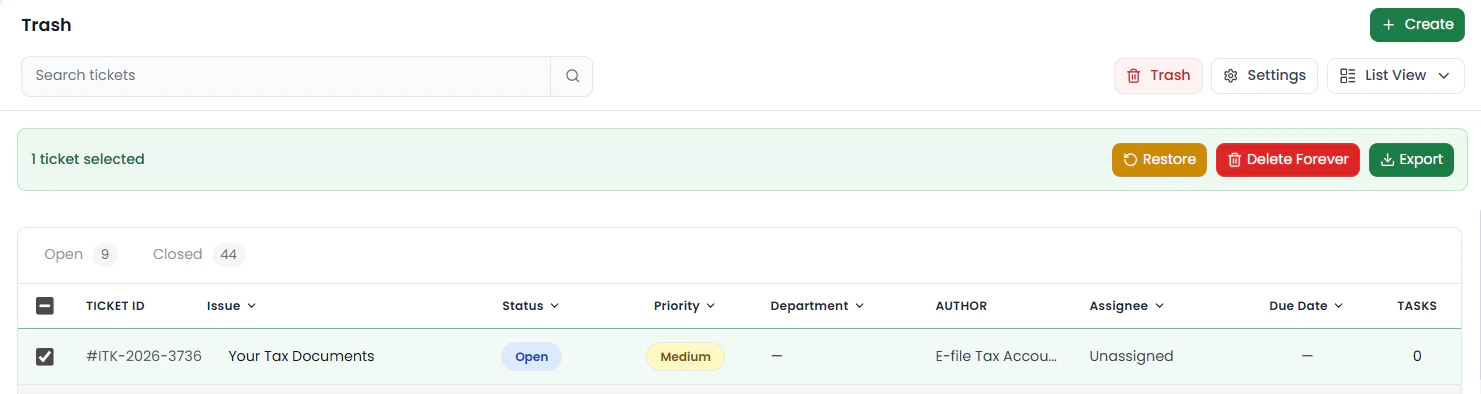
Ticket Settings
You can customize how tickets are formatted under Settings.Ticket ID Format
Define how ticket IDs are generated. For example:INC-25-0001
💡 You can change the letters at the start (e.g.INC,ITK,HLP) to match your brand or department.