

Tasks Overview
Tasks are an essential part of SafariDesk, designed to help teams organize, track, and complete work efficiently. While tickets handle customer requests, tasks focus on internal work management. Tasks can be:- Linked to a ticket (for follow-ups or internal actions)
- Created as standalone items (for general team tasks)
Creating Tasks
There are multiple ways to create tasks in SafariDesk:- From Tickets: Create a task directly from a ticket to track internal work related to that issue
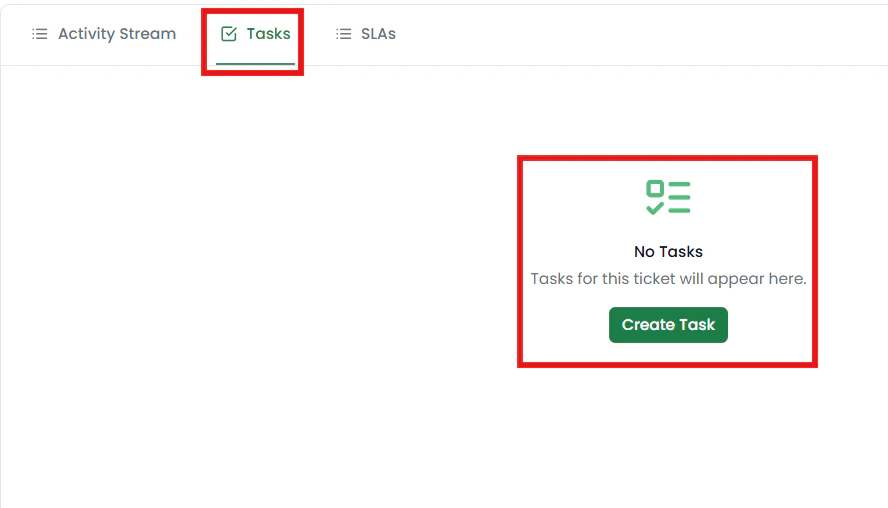
- Manual Creation: Use the Create Task button from the Tasks page
Task Views
SafariDesk provides a structured way to view and manage tasks. The default view is List View.List View
Displays tasks in a structured table with the following columns:- Task ID
- Title
- Labels
- Status
- Priority
- Department
- Assignee
- Due Date
- Open
- Closed
Task Actions
At the top of the Tasks page, you’ll find quick action options:- All Tasks — View all tasks
- Create Task — Add a new task
- Search Tasks — Quickly find tasks using keywords
- Trash — View deleted tasks
- Settings — Configure task preferences
Task Workflow
Tasks follow a simple and effective workflow similar to tickets:- To Do — Task is created and pending
- In Progress (optional if you add later) — Task is actively being worked on
- Completed / Closed — Task has been finished
Linking Tasks to Tickets
Tasks can be linked to tickets to break down work into actionable steps. Example use cases:- Assigning internal investigation work for a support issue
- Tracking engineering fixes related to a ticket
- Managing follow-ups after customer communication
Trash
Deleted tasks are not permanently removed. You can restore them anytime by navigating to the Trash, where all deleted tasks are stored.Task Settings
You can customize how tasks behave under Settings.Task ID Format
Define how Task IDs are generated. Example:T-2025-0001
💡 You can customize the prefix (e.g.,Tk,TSK,WRK) to match your workflow or department.
Key Benefits of Tasks
- Organize internal work separate from customer communication
- Break down tickets into actionable steps
- Assign clear ownership and deadlines
- Track progress across teams