

SLA Management Overview
The SLA (Service Level Agreement) module in SafariDesk allows you to define, monitor, and enforce response and resolution time commitments across your support operation. By configuring SLA policies, you ensure your team meets service expectations for every ticket — regardless of priority , while giving you clear visibility into performance and accountability. SLA tracking integrates with your business hours and holiday schedule to ensure time is measured fairly and accurately.Accessing SLA Settings
Navigate to: Configuration → SLA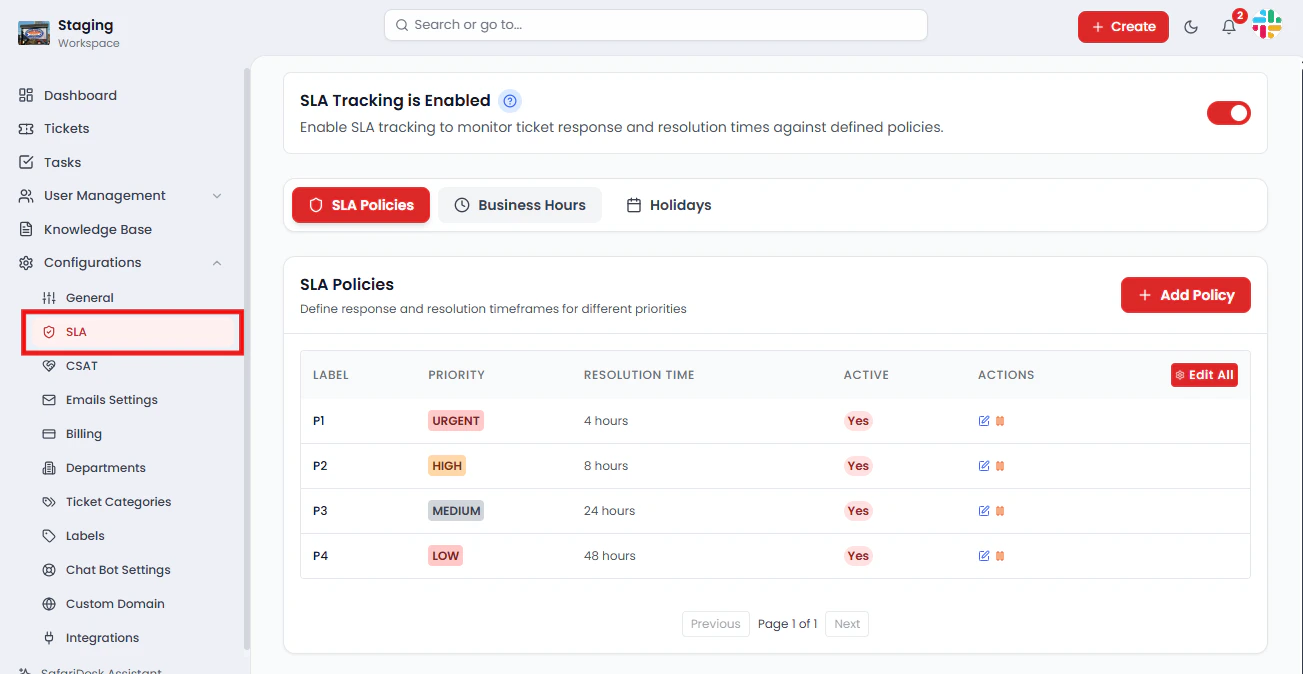
Enabling SLA Tracking
Before any SLA policies take effect, you must enable the SLA tracking feature.- Navigate to Configuration → SLA
- Toggle the SLA Tracking switch to ON

💡 Once enabled, the SLA watchdog begins monitoring all ticket activity according to the policies, business hours, and holidays you have defined.
SLA Policies
SLA policies define how quickly your team is expected to respond to and resolve tickets based on their assigned priority level. SafariDesk uses four priority tiers: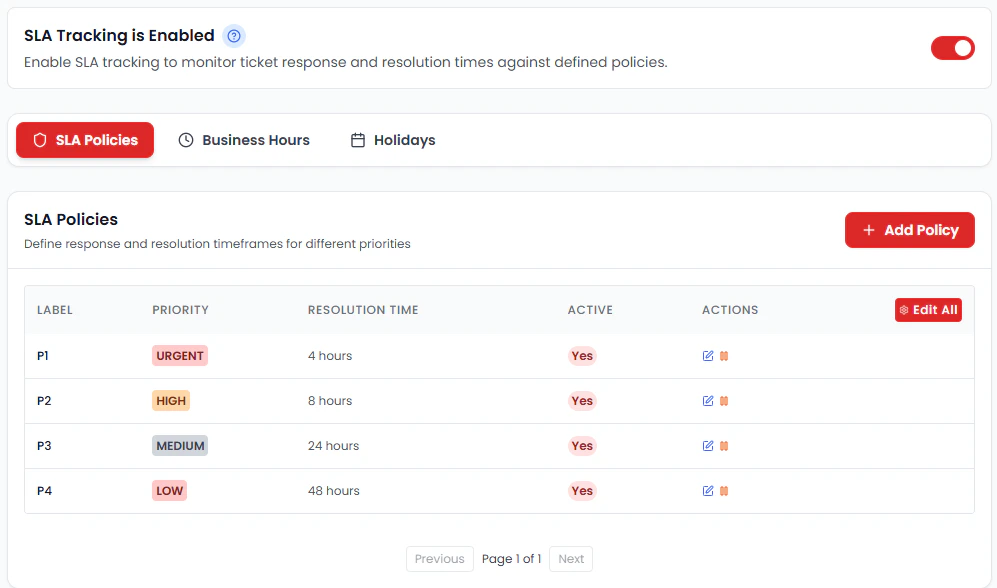
Editing SLA Policies
You can modify any policy to match your business requirements:- Use Actions → Edit to update an individual priority policy
- Use Edit All to modify all priority levels at once
- Response Time – How quickly an agent must first respond to the ticket
- Resolution Time – How quickly the ticket must be fully resolved
- Priority Level – Adjust the priority label and classification as needed
⚡ Changes to SLA policies apply to new tickets immediately after saving.
Business Hours Configuration
SLA timers in SafariDesk respect your configured business hours —the clock only runs during the hours your team is actively working. Default business hours:- Days: Monday to Friday
- Hours: 9:00 AM – 5:00 PM
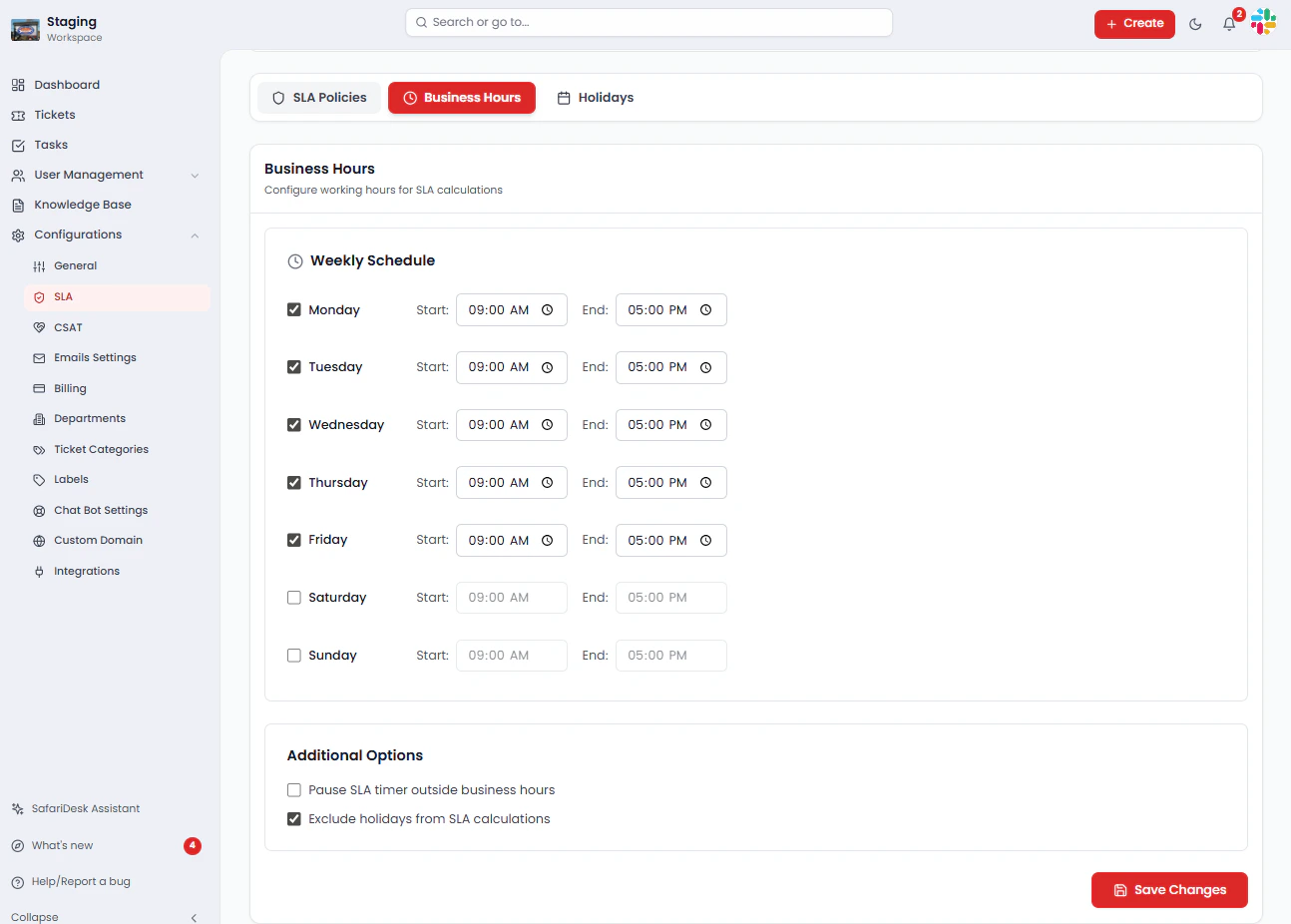
⏰ Example: A P1 ticket submitted on Friday at 4:00 PM with a 4-hour SLA will pause at 5:00 PM and resume at 9:00 AM the following Monday. This ensures your team is only measured against working hours, not downtime.Accurate business hour configuration is essential for fair SLA measurement and reliable reporting.
Holidays
The Holidays section allows you to pause SLA timers on company-recognized non-working days, ensuring SLA violations are never triggered during periods when your team is not operating.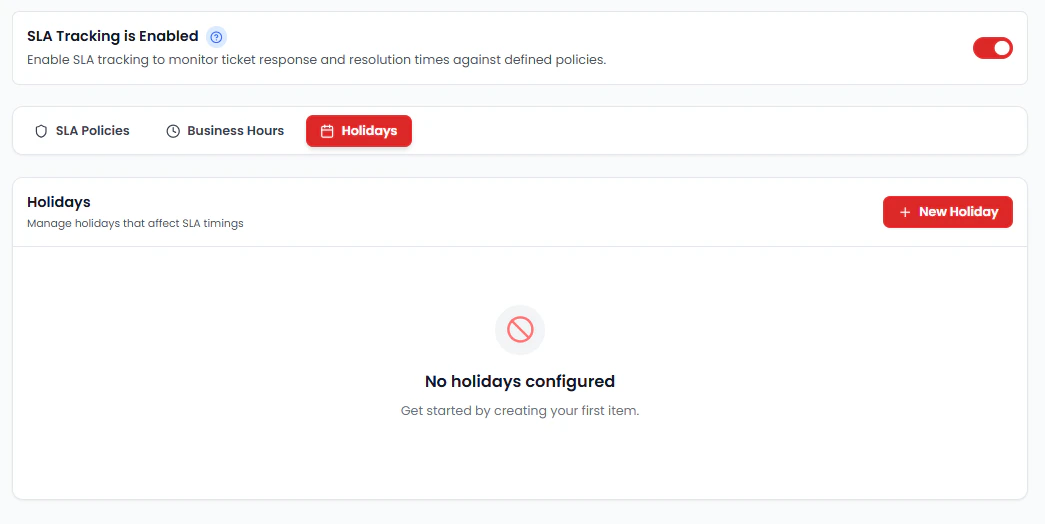
How Holiday SLA Pausing Works
- When a ticket is open during a configured holiday, the SLA countdown is paused
- The timer resumes automatically on the next active business day after the holiday ends
- Holidays can be configured as single days or recurring annual dates
💡 Example: If a ticket is due for resolution on December 25th (a configured holiday), the SLA timer will pause and resume on December 26th — preventing an automatic violation during the holiday.
Adding Holidays
To add a holiday:- Navigate to the Holidays section within Configuration → SLA
- Click Add Holiday
- Enter the holiday name and date
- Choose whether it is a one-time or recurring event
- Click Save
Saving Changes
After making any updates to SLA policies, business hours, or holidays, click Save Changes to apply your configuration.⚠️ Unsaved changes will not take effect.
Summary
The SLA module in SafariDesk provides a complete framework for managing ticket response and resolution commitments:- SLA Tracking – Enable real-time monitoring of all ticket activity
- Priority Policies (P1–P4) – Define response and resolution targets per ticket priority
- Business Hours – Ensure SLA timers only run during active working hours
- Holidays – Pause SLA countdowns on non-working days to prevent unfair violations
Need Help?
If you have any questions or need assistance, contact our support team at[email protected]** **We’re always here to help you get the most out of SafariDesk.